Time Entries
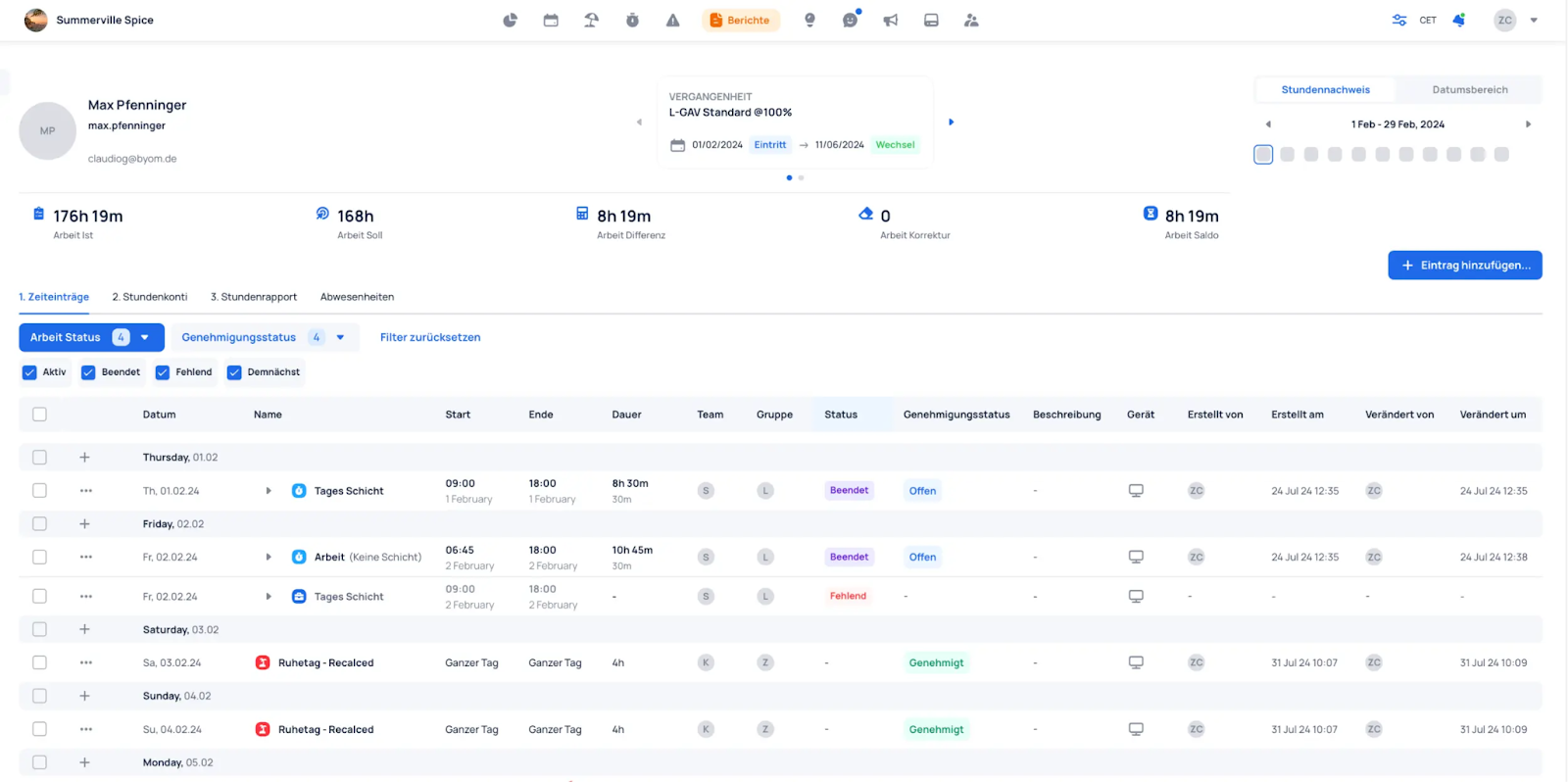
Under Reports --> Time Entries you can find the employees' Time Entries. The selected period is displayed in the top right.
Corrections
During Time Tracking, errors can occur such as incomplete or incorrect entries, forgotten breaks, etc. It is important to review and correct these errors.
Adjust Working Hours
An error could be that an employee forgot to clock out or forgot to clock back in after a break.
JobDone highlights such outliers with color coding and a "!" icon.

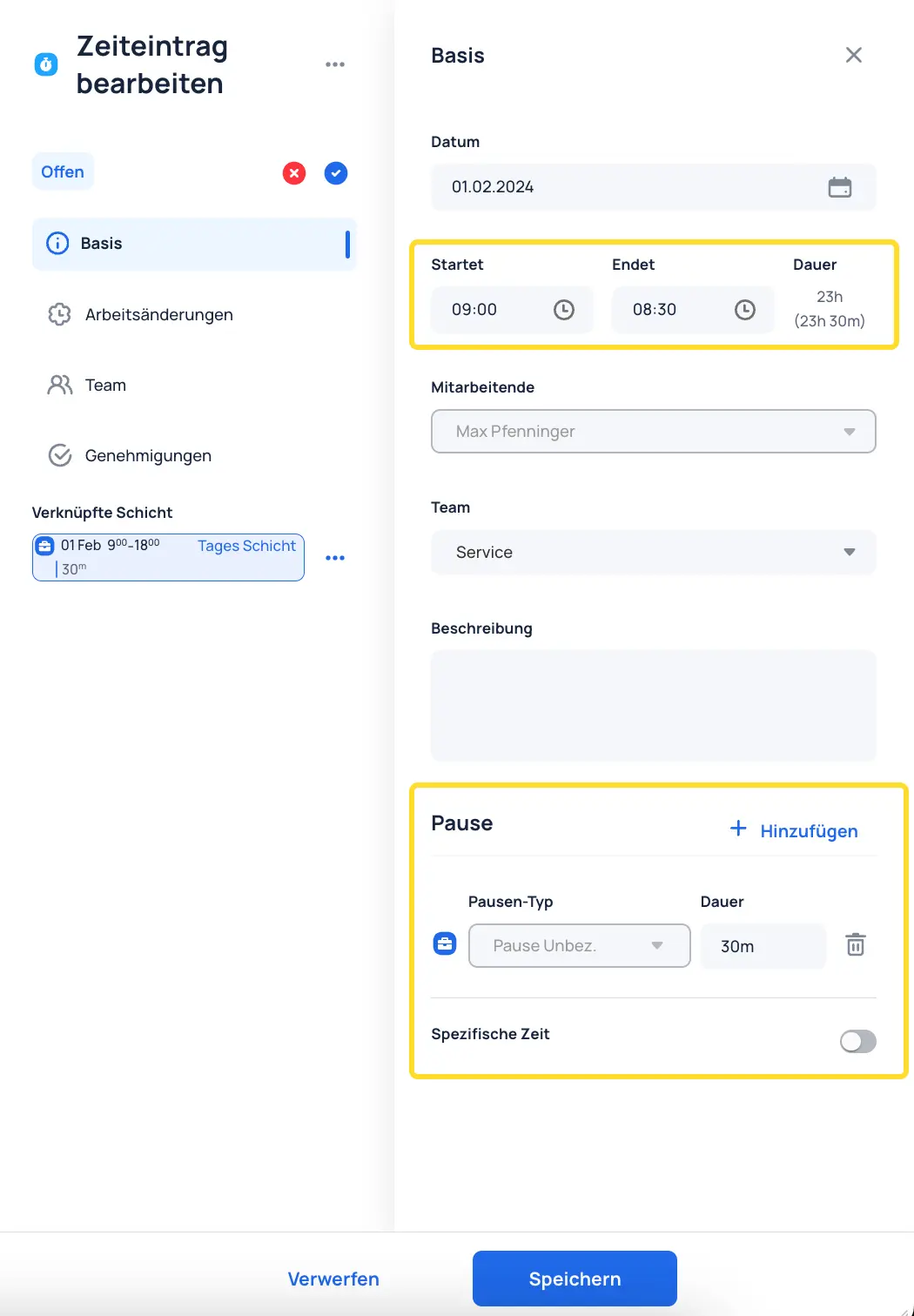
Click on the entry to edit the time entry: start/end times, breaks, etc.
Add Work or Absence
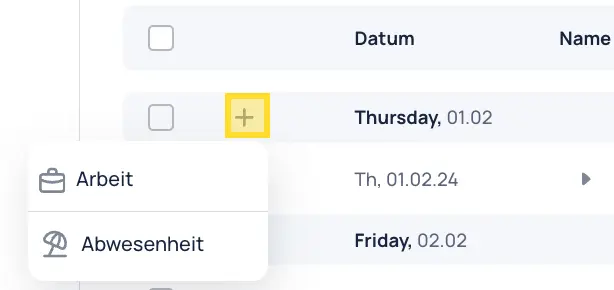
It may happen that a shift has the status "Missing". Either the working hours were not recorded, or a spontaneous absence occurred.

You can retroactively add a work entry to the 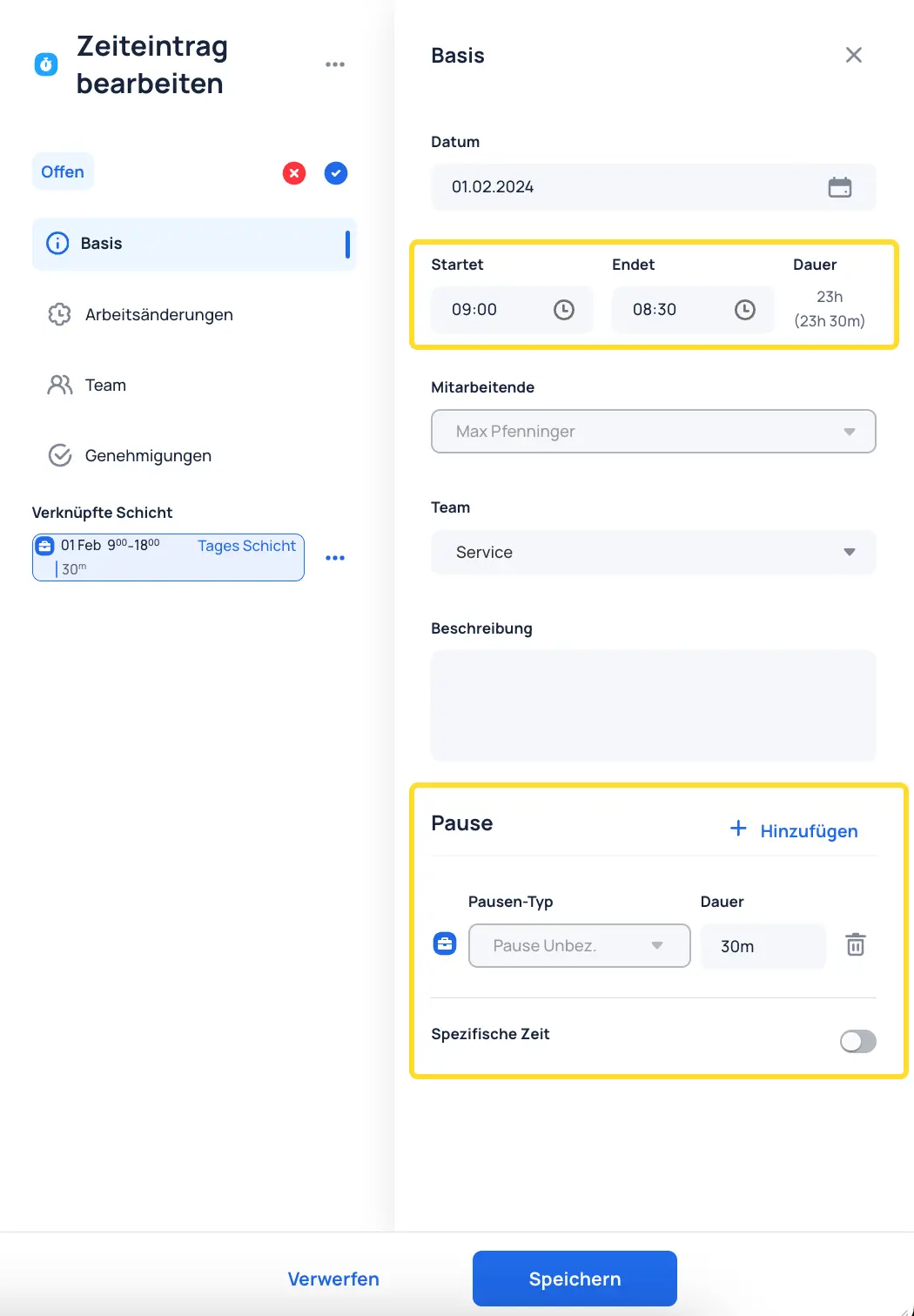
shift or add an absence.
Link Work with Shift
It may happen that a work entry is not linked to the shift during Time Tracking.
Reasons for this include:
- Work started more than 1 hour before the shift began
- Shift was added after the work time entry
- Work time was started "without a shift"

Such entries can be linked as follows.
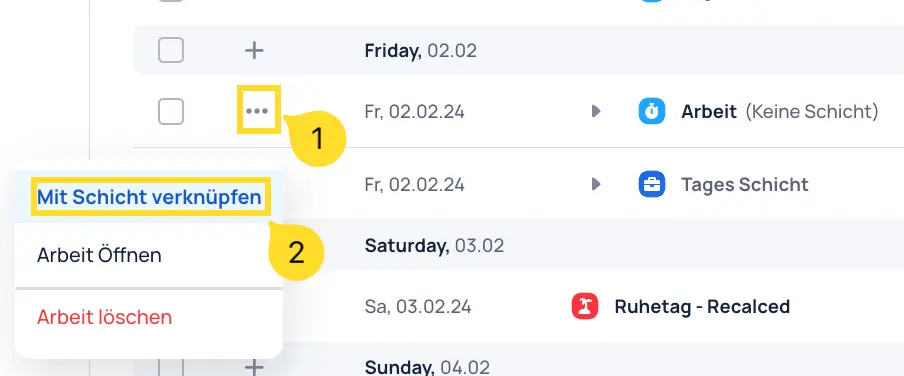
Approvals
After all entries have been reviewed, they must be approved. To approve all entries at once, select them as follows.
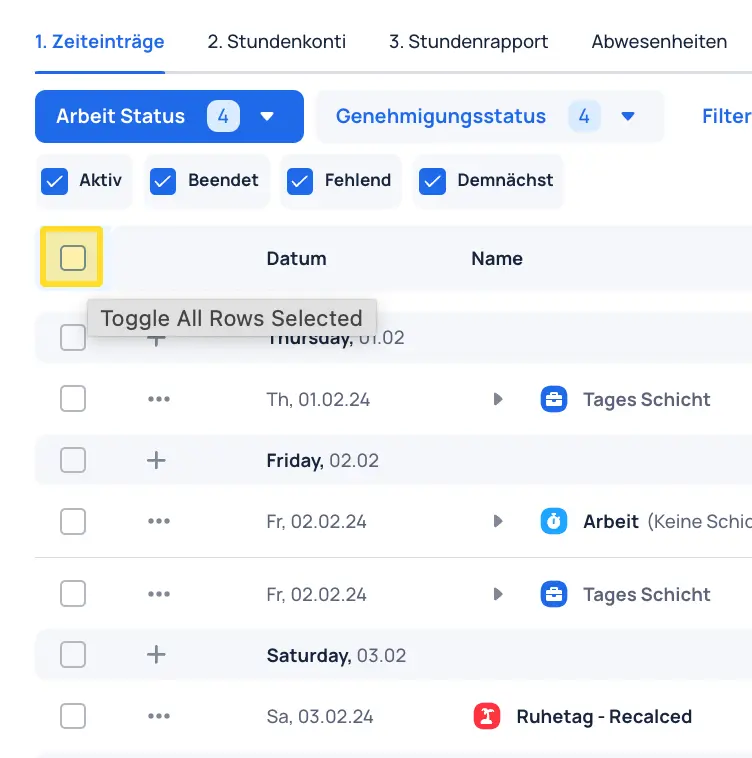
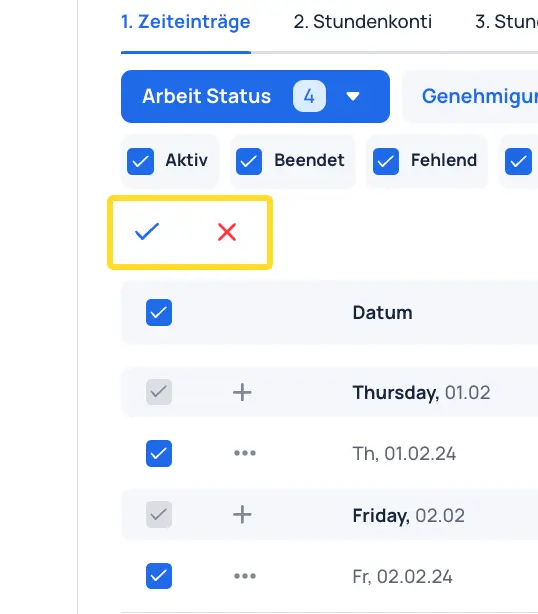
The selected entries can then be approved or rejected.
Time Entries can also be approved individually.
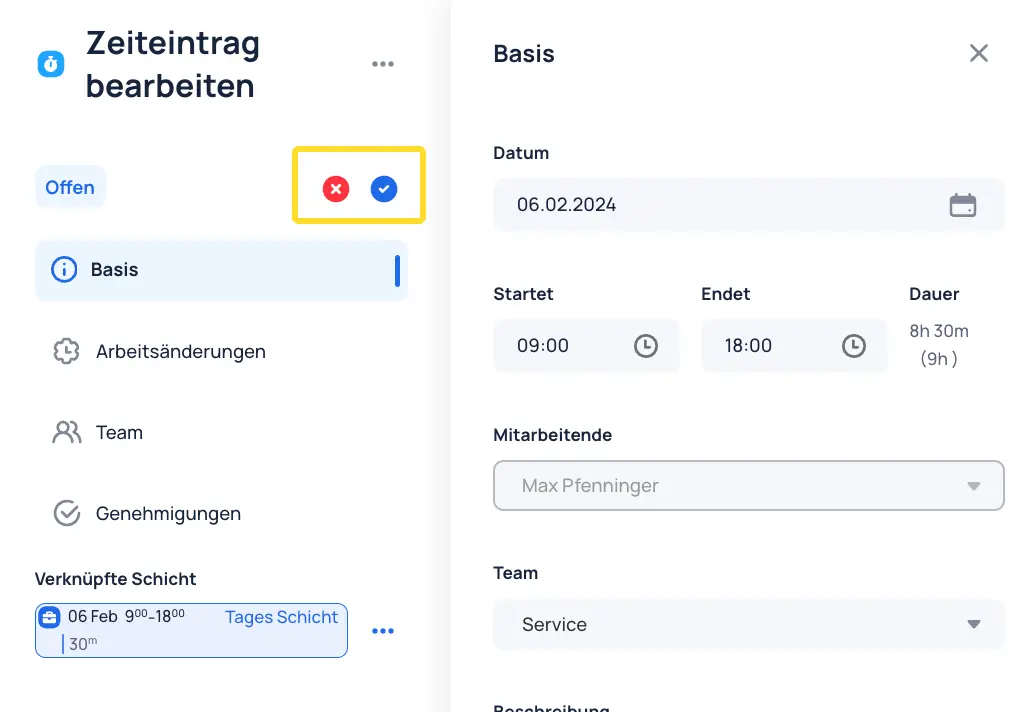
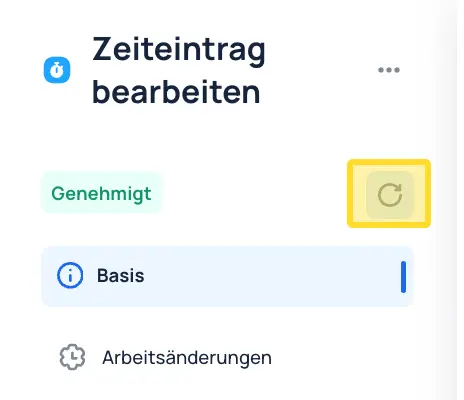
Approved Time Entries can be reopened as follows.
L-GAV Check (Optional)
Optionally run the L-GAV Check Export to analyze possible violations of the L-GAV. To do this, go to Reports → Custom Exports → L-GAV Check Export for the desired time frame and groups/teams. Then run and analyze the CSV L-GAV Check in Excel.