Time Report
The Time Report section covers the sub-process for generating and signing the Time Report.
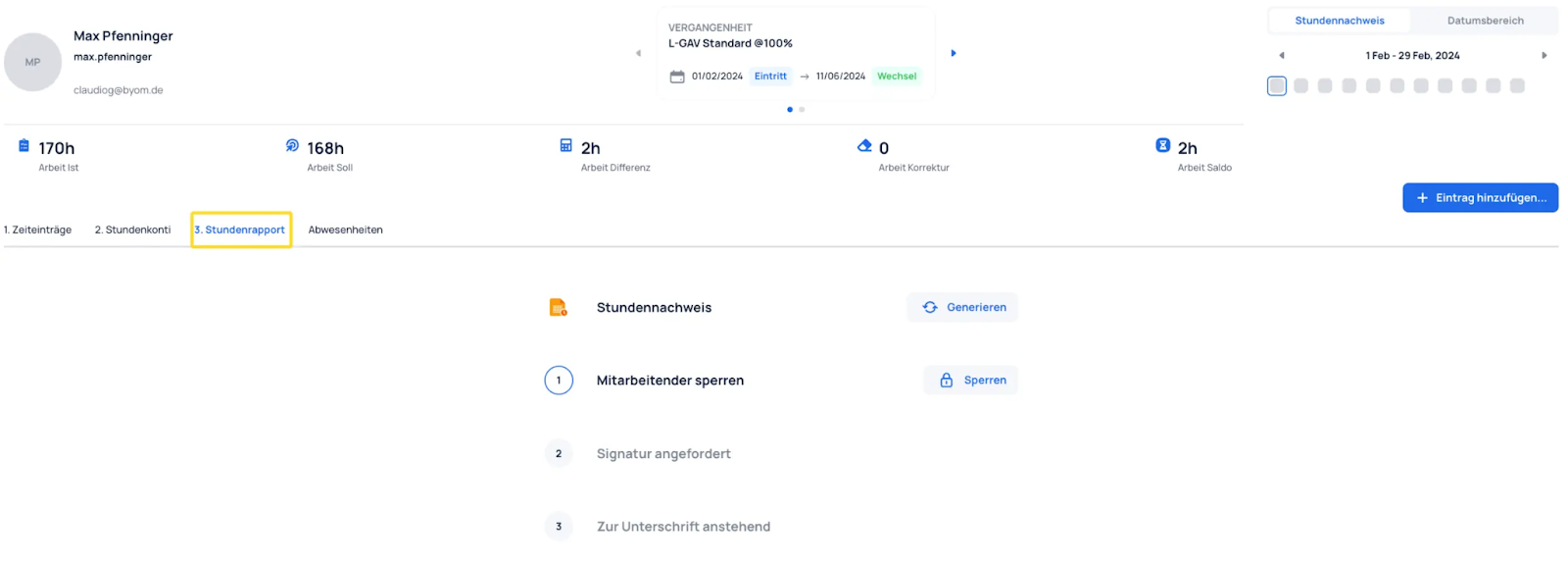
- Generate Time Report: Create a report of the recorded working hours and review it in the PDF.
- Lock recorded times: After reviewing and confirming the hours, lock the times to prevent changes.
- Submit Time Report for signature:
- With digital signing, the timesheet is sent directly to the JobDone app on the employee's smartphone. The employee is notified that a new Time Report is ready for signature and can review and sign it directly in the app.
- For paper-based signing, the report must be handed over manually and this step can be skipped.
- Confirm employee signature: Automatic confirmation for digital signatures; manual confirmation required for handwritten signatures.
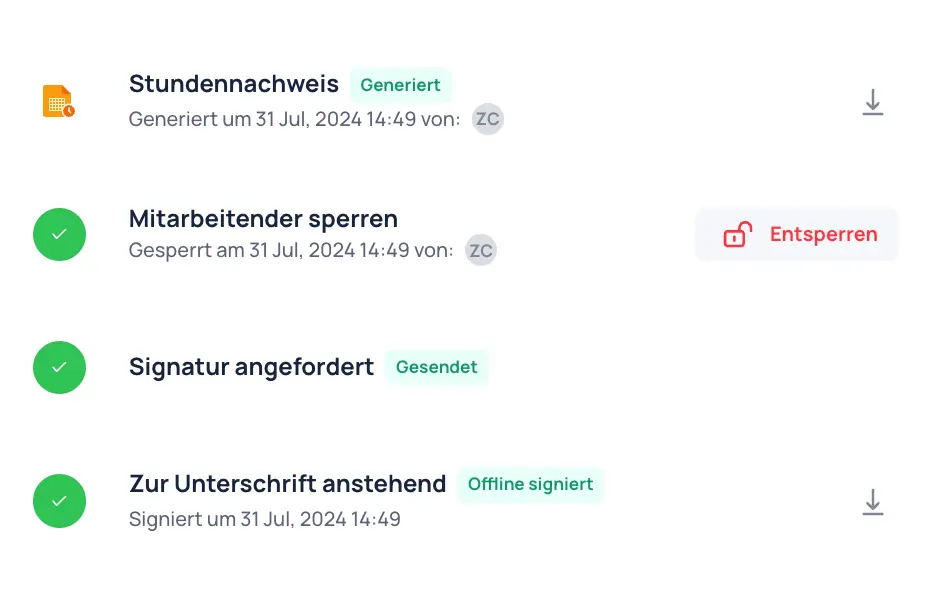
The status is displayed as follows once the Time Report has been signed. It is noted whether the Time Report was signed digitally or manually.
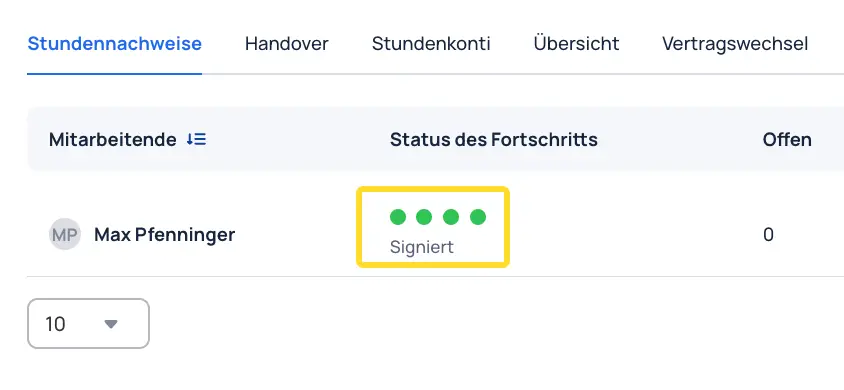
The following progress status now appears in the Time Reports overview:
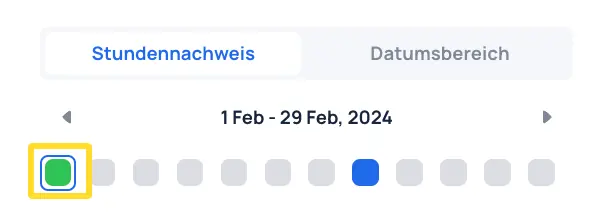
After an employee's times have been locked, the locked period appears as a green dot. The Time Report process must be carried out for each period.
note!
Notes:
If an employee's times cannot be locked, this is usually due to:
- Unlocked past periods
- Unlocked Time Entries or errors in the Time Entries
Reports Overview
To avoid carrying out this process individually for every employee, you can do it under Reports → Overview for the entire organization or for individual or multiple groups or teams.
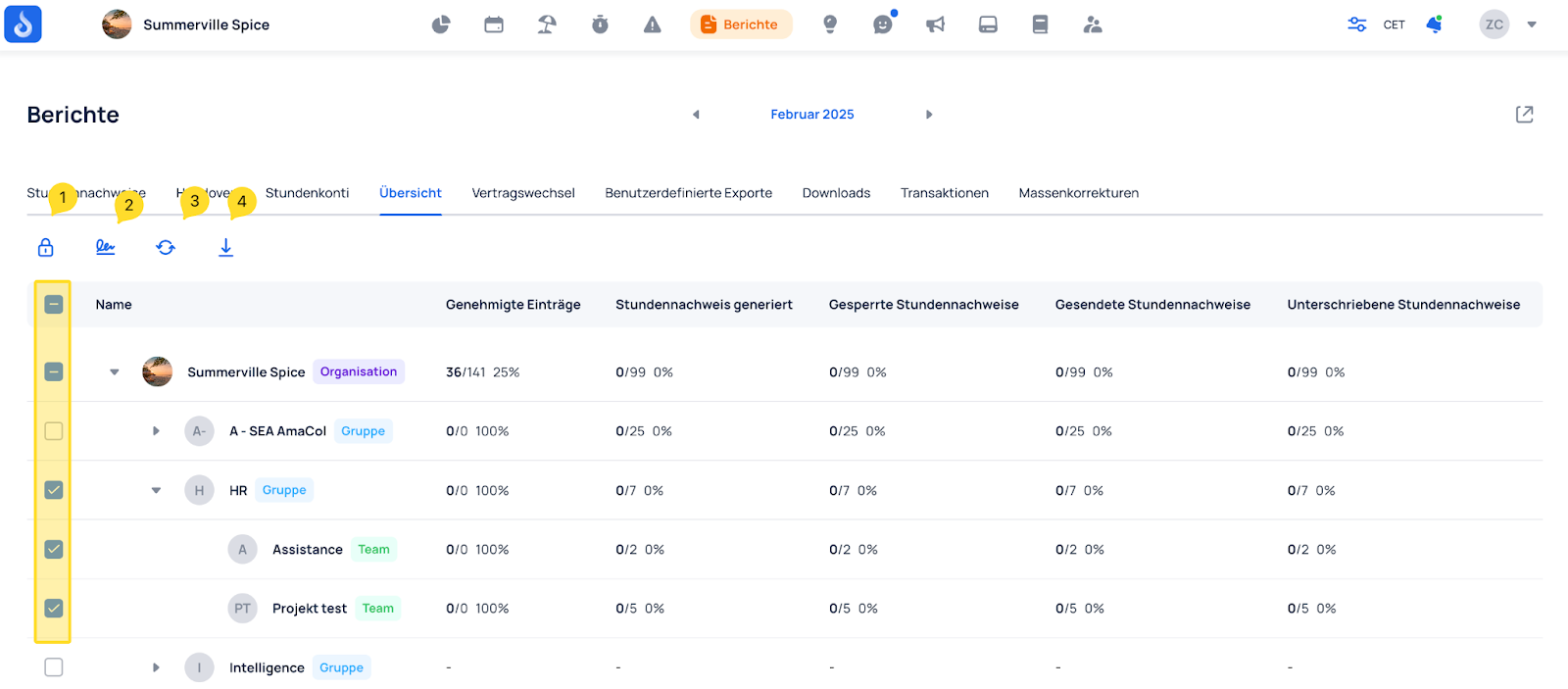
Select the desired structural elements (groups/teams) on the left and choose:
- To lock the selection
- To send the Time Report to the selection for signature
- To regenerate the Time Reports for the selection
- To download the Time Reports for the selection