Employees
In this area, employees can be managed and organized. Register new employees, assign them positions, skills, and contracts, and manage their team memberships. Use this page to centrally maintain all relevant employee information and ensure that each employee is optimally integrated into operations based on their skills and contracts.
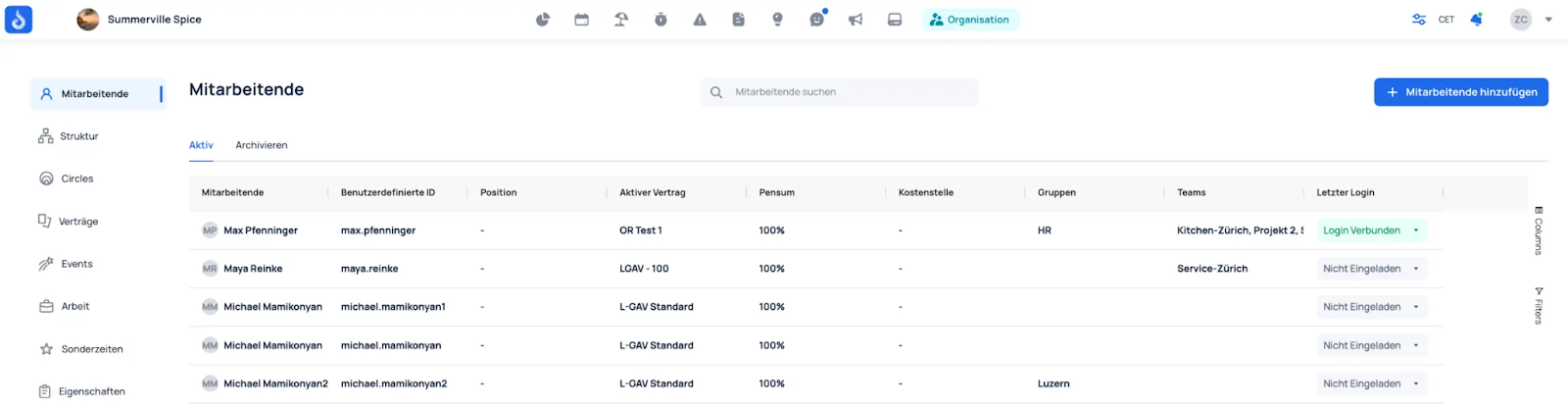
Under the "Last Login" column, you can see each employee's current status.
- Not invited --> The employee has been created but not yet invited to the organization
- Invitation sent --> An invitation to the organization was sent by email
- Login Connected --> The employee has joined the organization
Process Steps
Create Employees
To add a new employee, click "Add Employee" in the top right.

All relevant employee information must then be entered. Required fields are: last name, first name, employee ID, and a contract.
Invite Employees
After the employee has been created, they must be connected to the organization. To do this, invite them via the "Last Login" column.
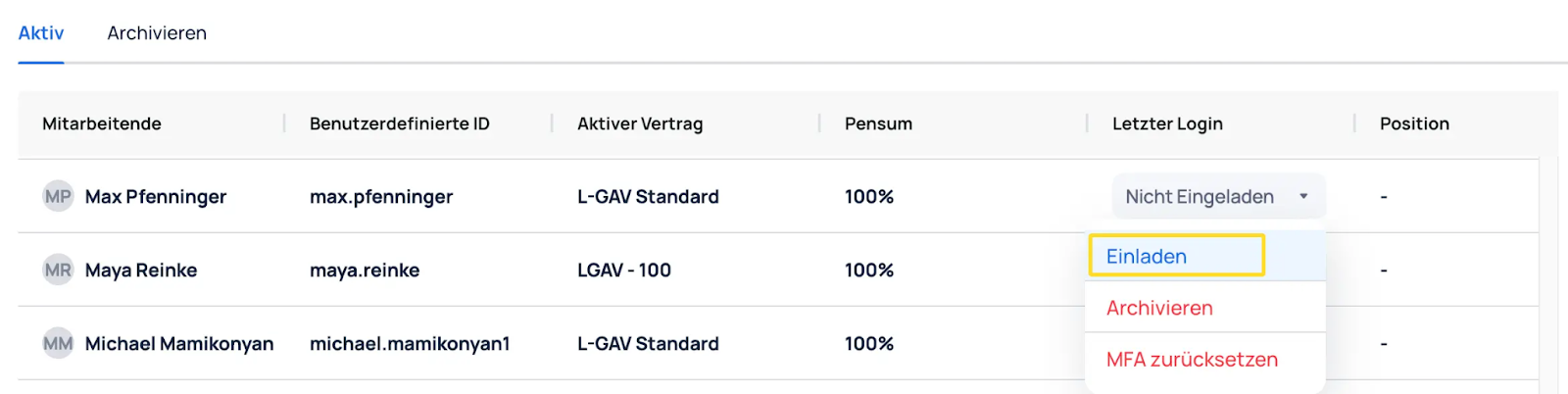
The status "Invitation sent" then appears under "Last Login".

Once the invitation has been accepted, the status changes to "Login Connected".

Disconnect Employee Login
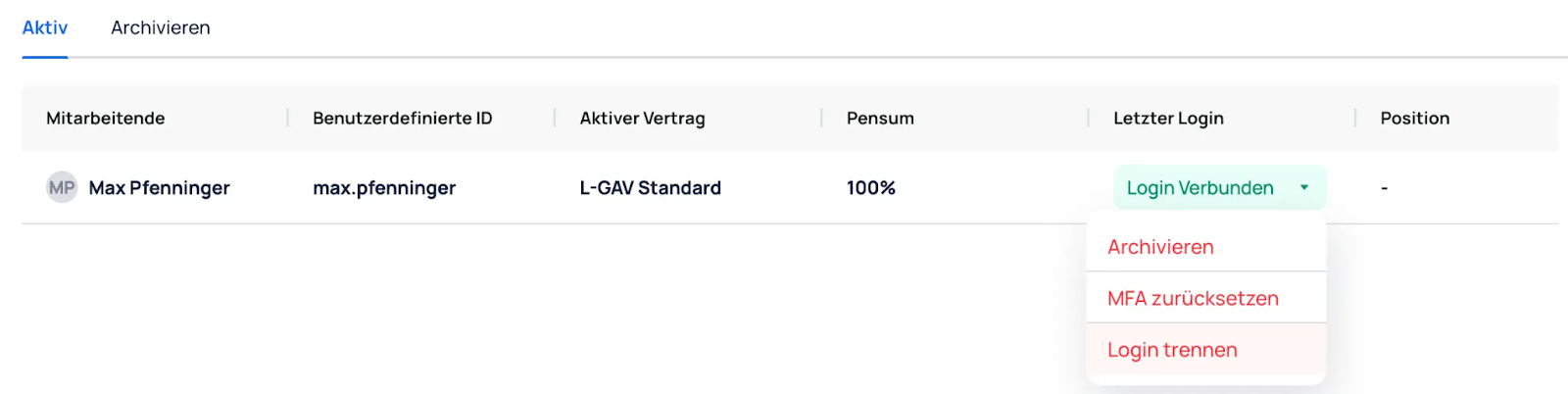
If active employees should no longer have access to JobDone, they can be disconnected from the organization using "Disconnect Login" under "Last Login".
Archive Employees
Employees can be removed from the active list and archived after leaving the company. It is recommended to disconnect employees from the organization before archiving them.
Under "Last Login", employees can be archived using "Archive". The employee loses access to the organization; if a contract is active, it is terminated, and all global admin roles are removed.
The employee then appears under the "Archive" tab.

Employee Information
Basic Info
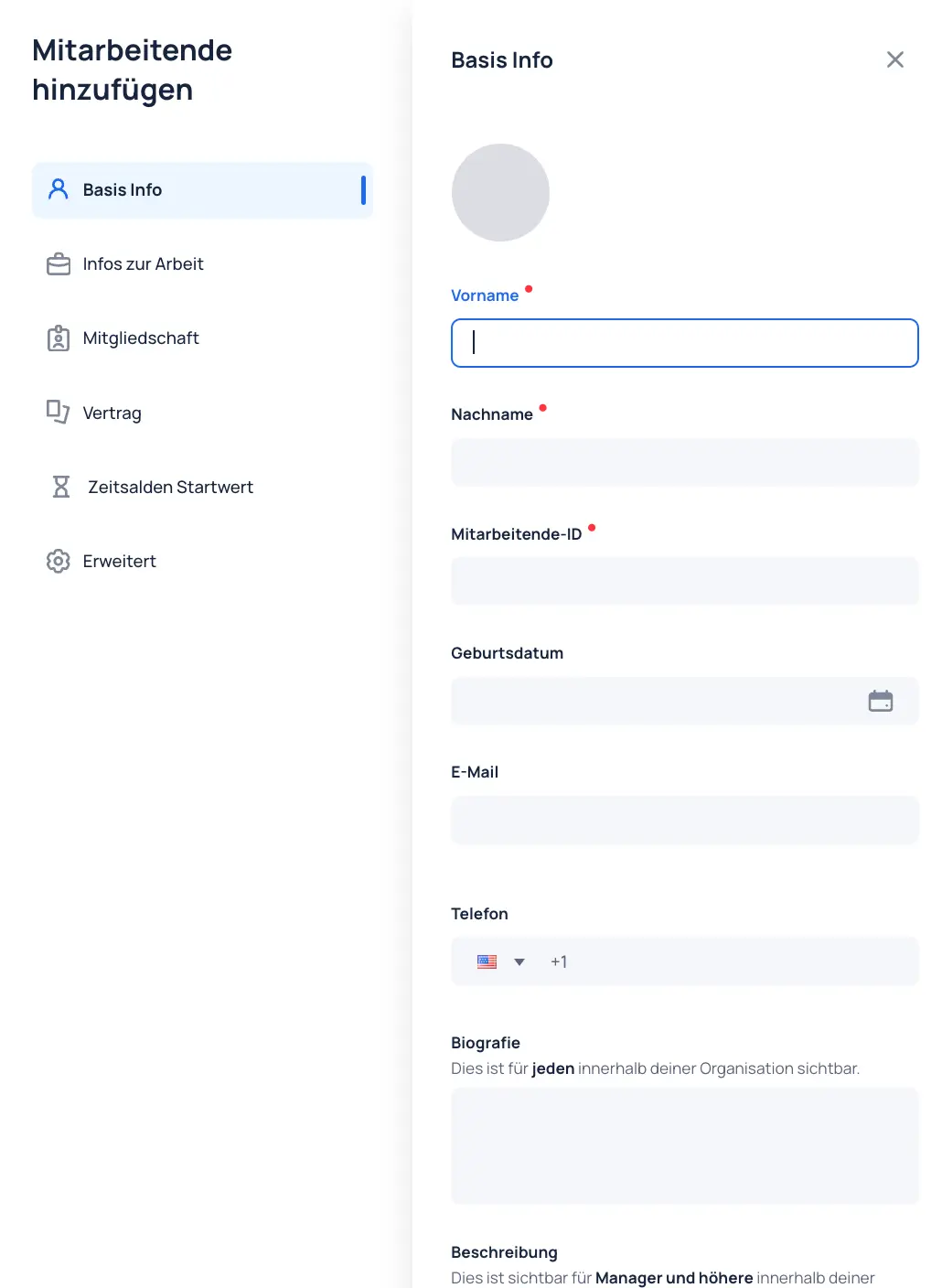
Basic information such as first name, last name, email, phone number, etc. is maintained here. Required fields are: last name, first name, and the employee ID — which is either automatically generated from FirstName.LastName or a company-wide custom employee ID.
Work Information
Here, work-related information about the employee can be defined, such as position, skills, and attributes.
These properties must be configured in advance under Organization --> Properties.
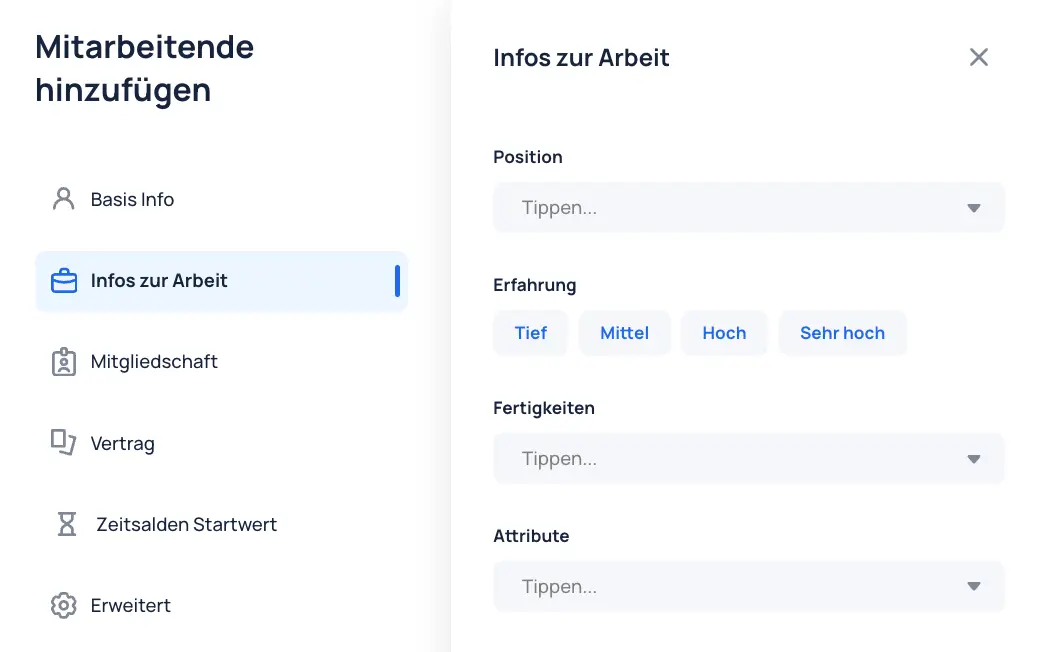
Positions
Describes the employee's position in the organization. This is visible to all employees in the organization.
A position can be, for example: Bar, Chef de Service, Service, etc.
Only one position can be selected.
Additionally, the experience level for the corresponding position can be defined: low, medium, high, very high.
Skills
Describes specific skills that can be assigned to employees. This allows you to define operationally important skills such as "Open Shop", "Close Register", "Equipment Maintenance", or other skills relevant to operations.
Skills are only visible to managers and admins.
Attributes
Additional characteristics can be assigned using attributes. For example, employee hierarchy levels could be created as an attribute, such as: Lower Management, Middle Management, Upper Management, etc.
Attributes are only visible to managers and admins.
Information about configuring positions, skills, and attributes: Properties.
Membership
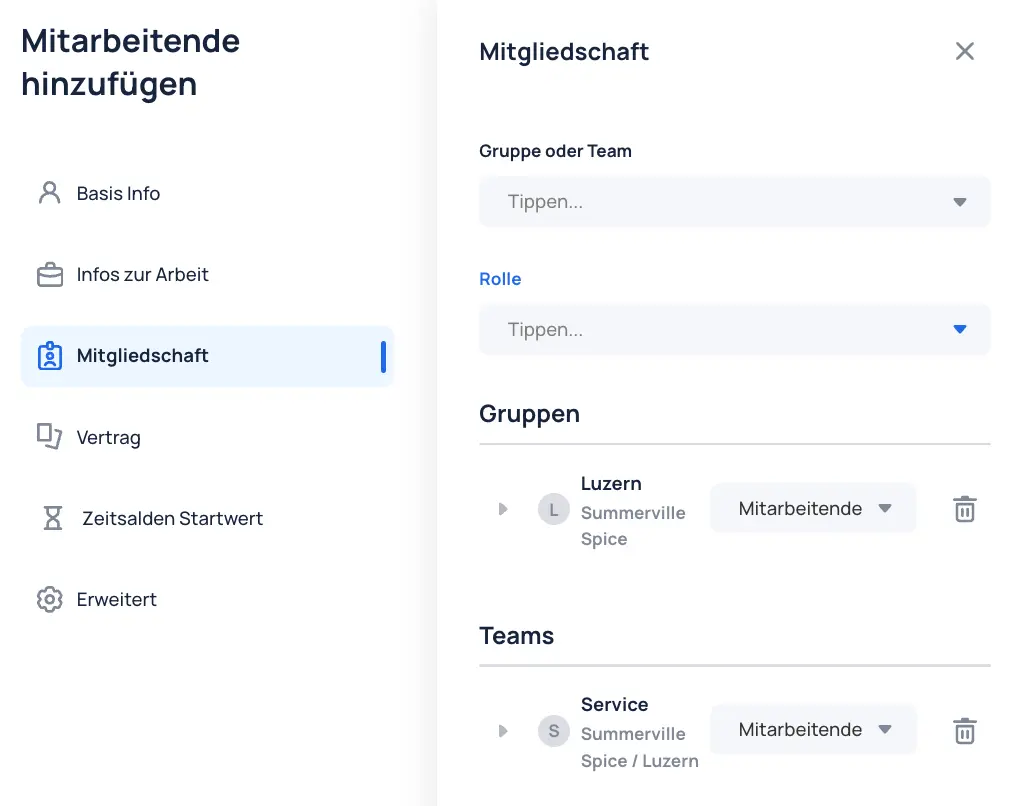
Under Membership, you can determine which group or team employees should be assigned to.
The employee's role within the membership must be specified: Employee, Admin, or Manager.
Employees assigned to teams are displayed in those teams in the schedule.
Further information about roles and permissions can be found in the chapter "Roles and permissions".
Contract
To create an employee, a corresponding contract must be assigned. Under Contracts, you can see current, past, and future contracts.
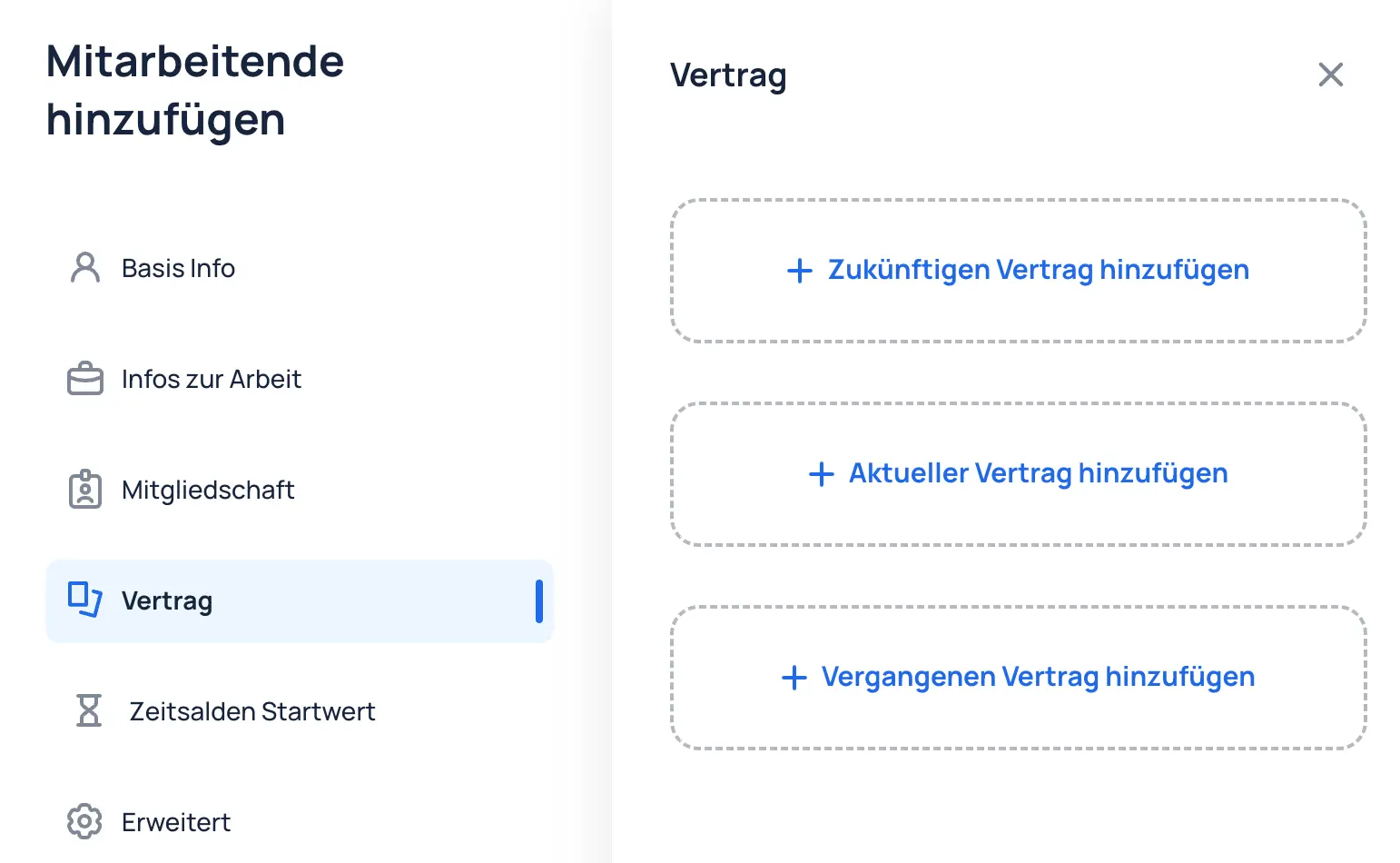
Add Contract
To add a new contract, select a contract type and a start date.
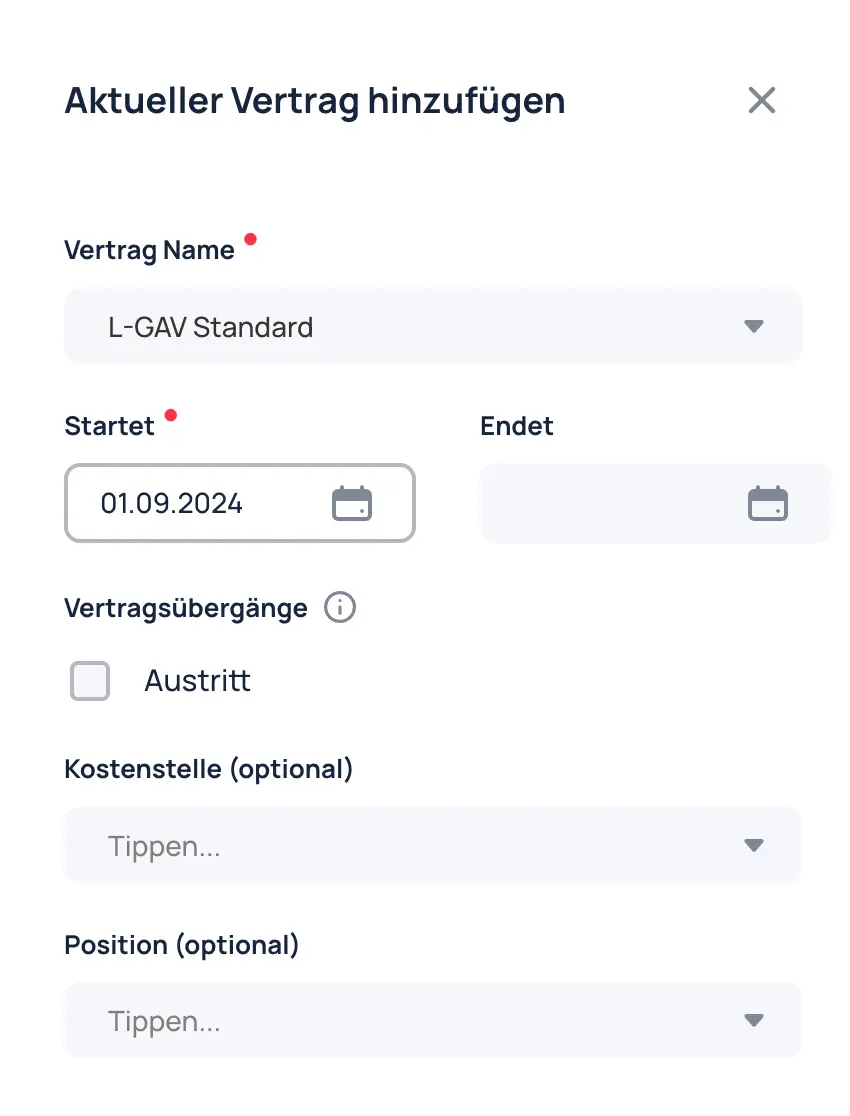
Workload and Weekly Plan
The workload can be defined in the contract.
If a person always works on fixed days, a weekly plan can be configured using the "Override Working Days" option.
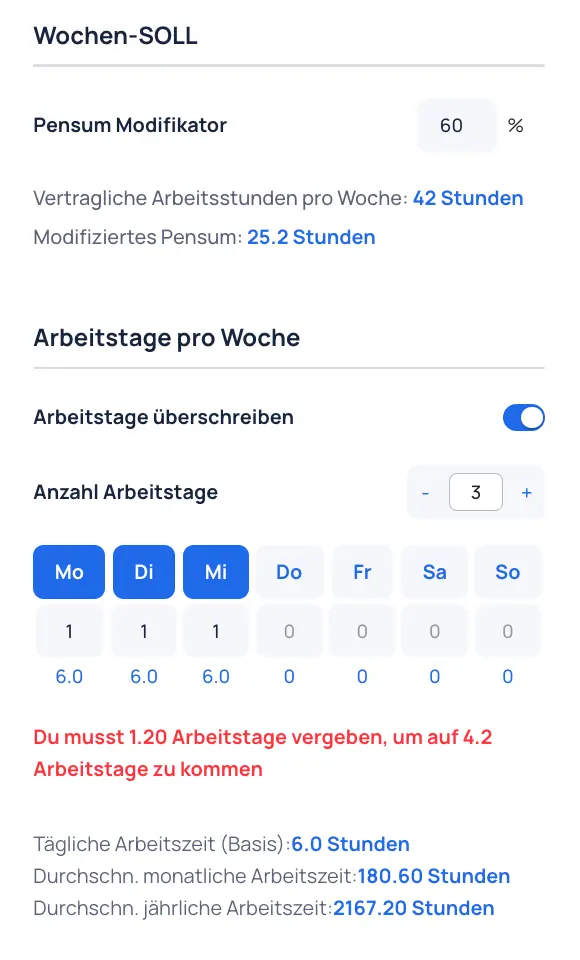
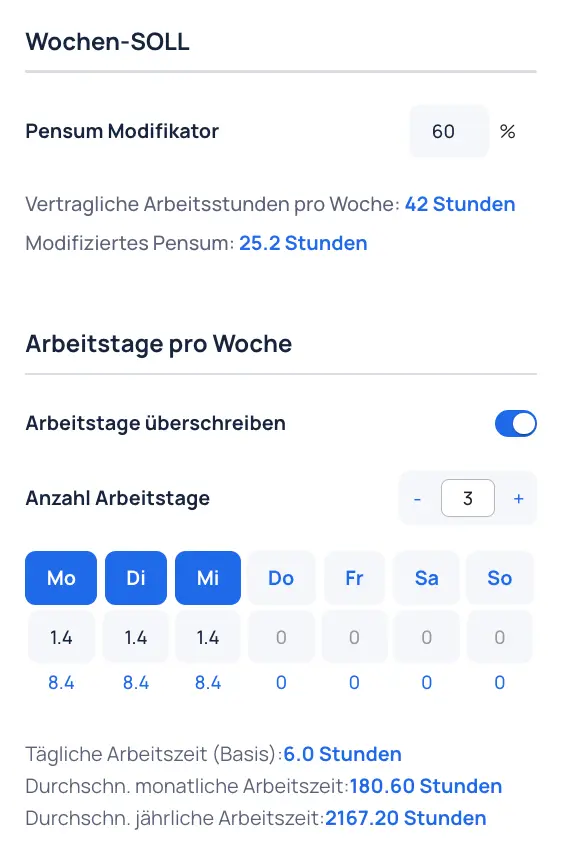
In the example, an employee works a 60% workload and distributes the 4.2 working days across three days.
The hours must be distributed across Monday to Wednesday — i.e., 1.4 working days or 8.4 hours per day.
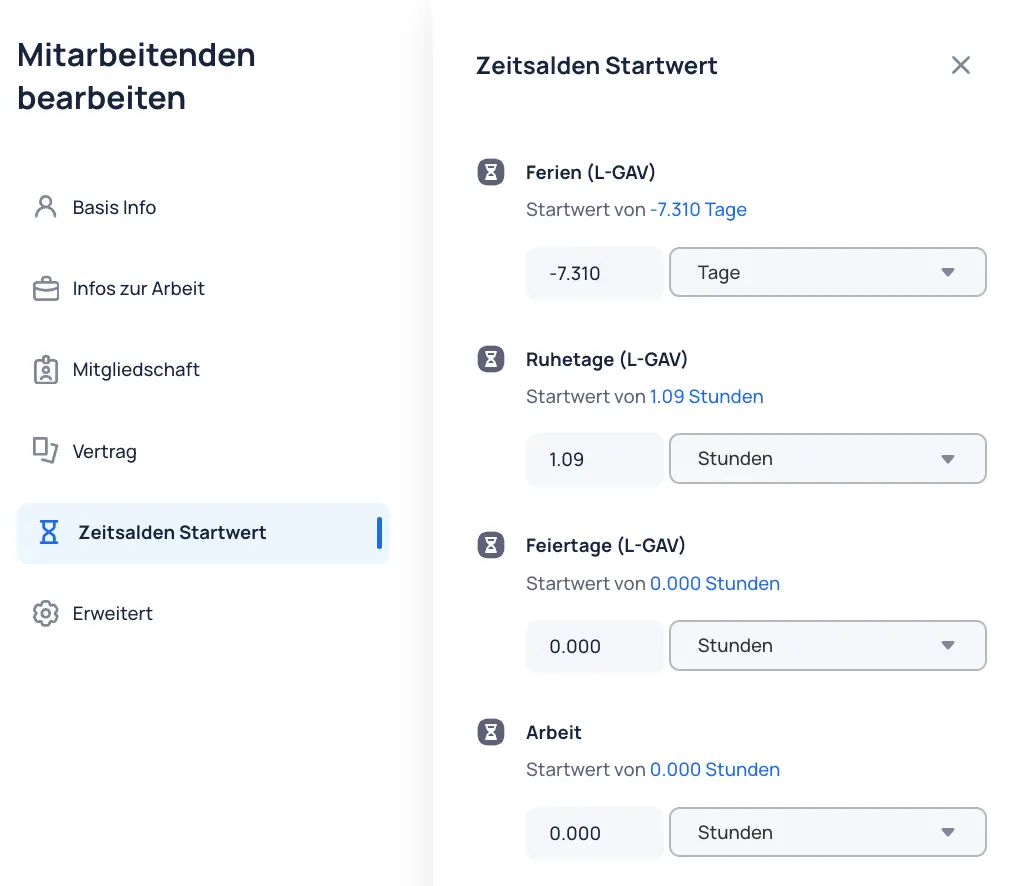
Time Balance Starting Values
Starting values for the time balances in the contract can be defined under Time Balance Starting Values. Values can be entered in days or hours and are visible as of the contract start date.
Advanced
Customer-specific fields can be defined and used here, depending on the requirements of the business. These values are then displayed in the mobile app under Profile --> Directory for the corresponding employee.
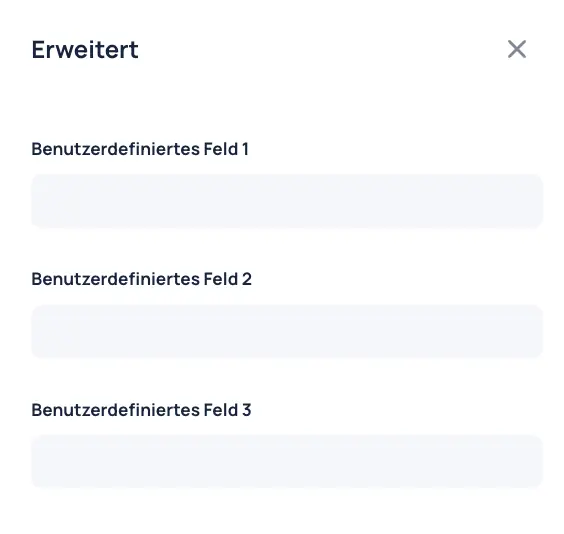
If custom fields are needed, please contact JobDone Support.