File Drive
Offers document storage directly in JobDone.
Main Drives
Can be used, for example, to store important company information in a shared folder accessible to employees.
Employee Drives
Personal employee dossiers that can be used to store timesheets, medical certificates, etc.
With the JobDone Signature Add-on, an employee drive for time records is automatically generated. Signed time records are automatically stored there.
Main Drive
Below is the setup for a main drive.
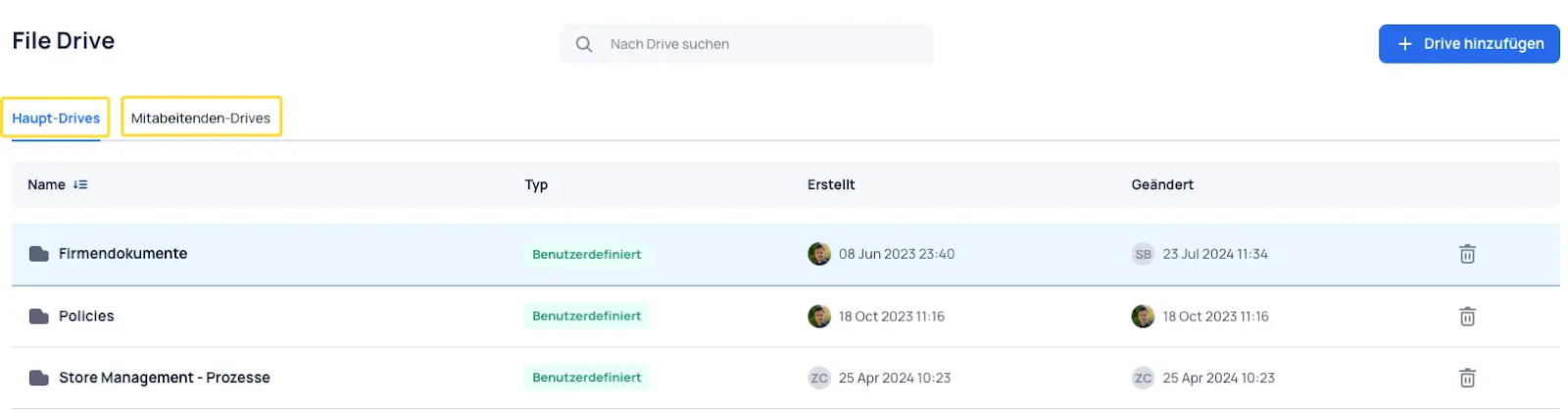
A new drive can be added in the top right.
Step 1. Settings
Define a name for the main drive.
Step 2. Permissions
The permissions View, Manage Files, and Manage Folders are assigned here.
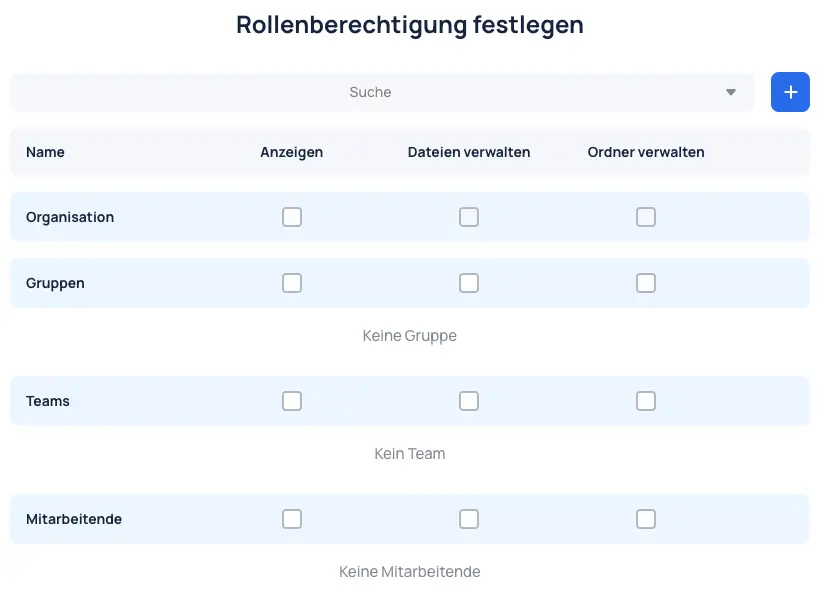
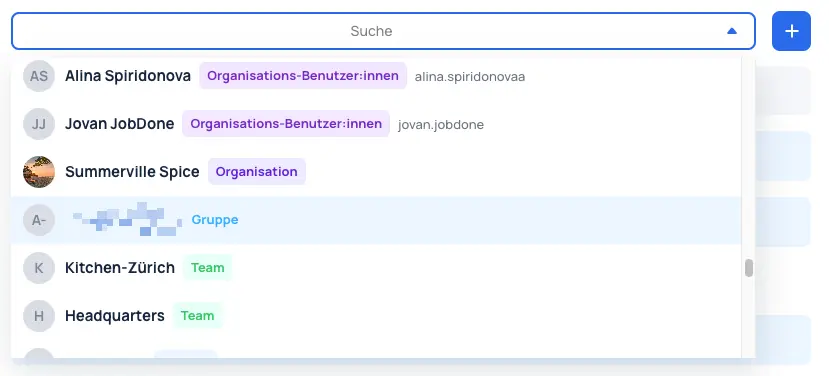
These permissions can be assigned across the entire organization, per group, per team, or per employee.
Employee Drive
Below is the setup for an employee drive.
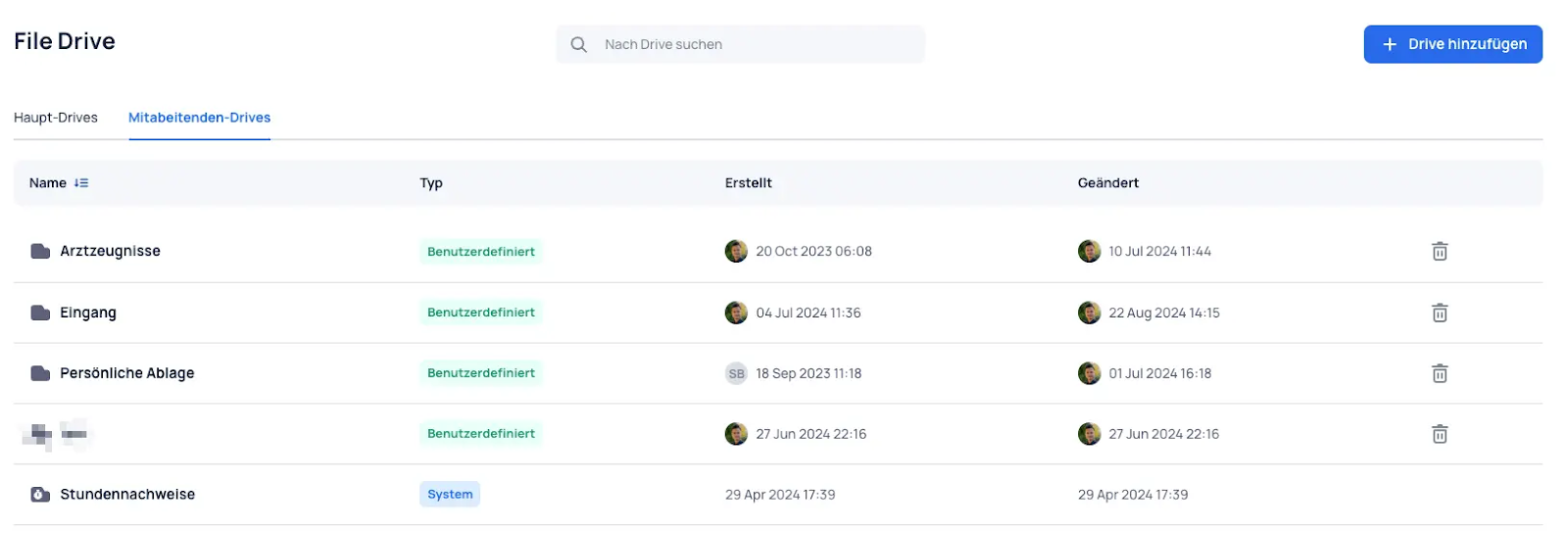
A new drive can be added in the top right.
Step 1. Settings
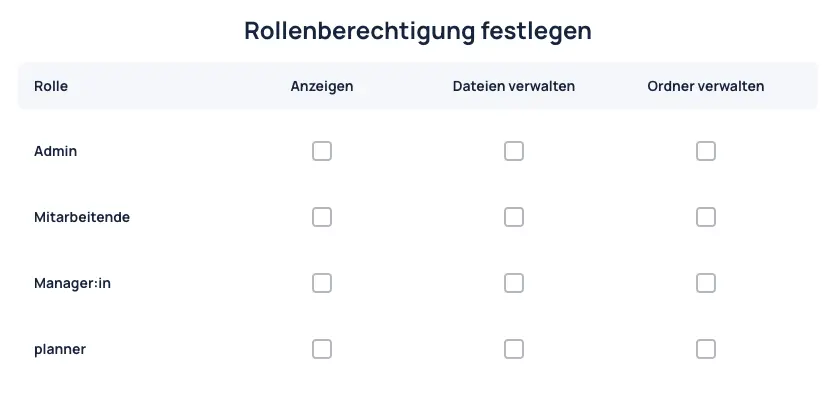
Step 2. Permissions (Structure-Dependent)
The permissions View, Manage Files, and Manage Folders are assigned here; these permissions depend on the organizational structure.
In this section, role permissions are assigned to the admins and managers who are above the employees in the structure.
Step 2. Permissions (Structure-Independent)
Additional permissions can be assigned here independently of the structure-based permissions.
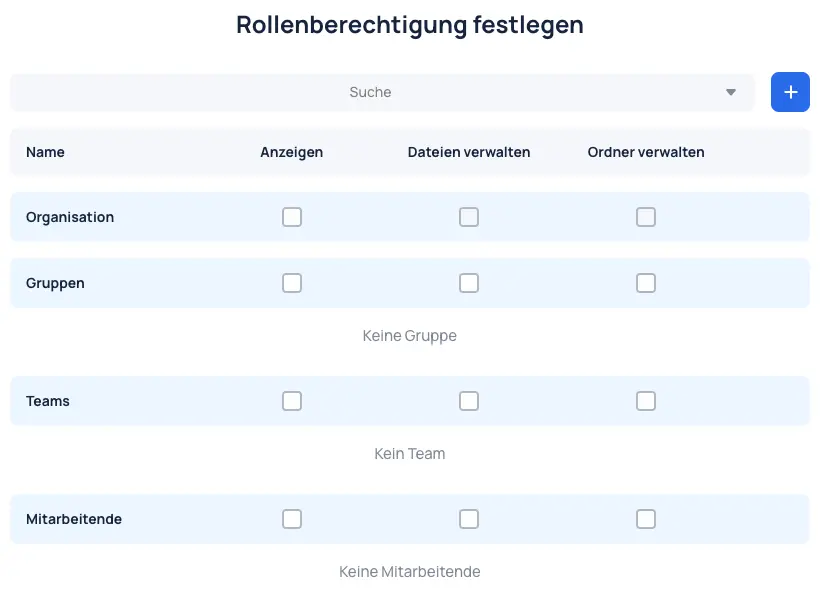
These permissions can be assigned across the entire organization, per group, per team, or per employee.
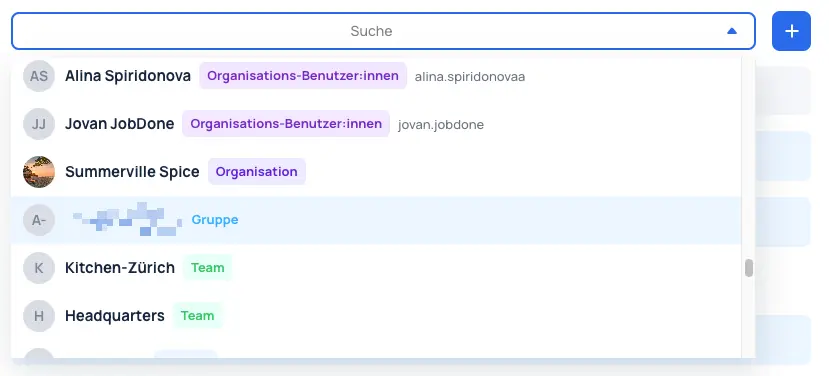
For example, certain team members may be allowed to manage their files in addition to the existing view permissions.
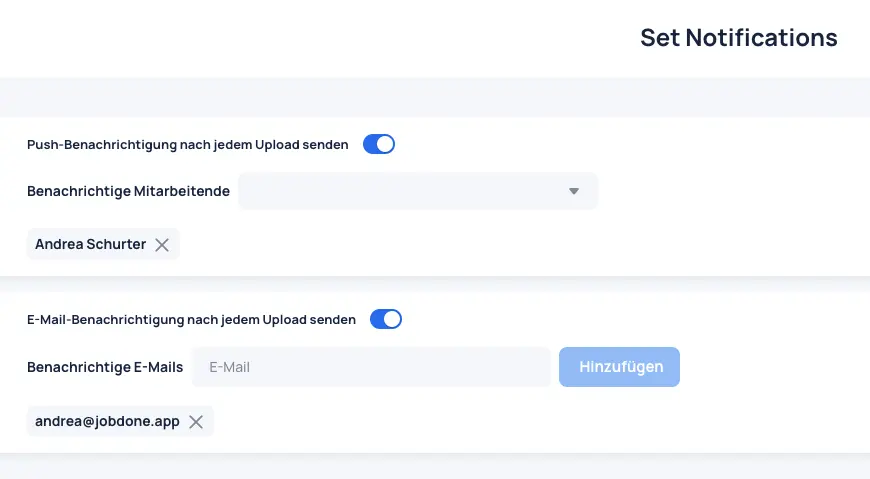
Step 3. Notifications
Here, employees — for example HR staff — can be notified as soon as a new file has been uploaded.