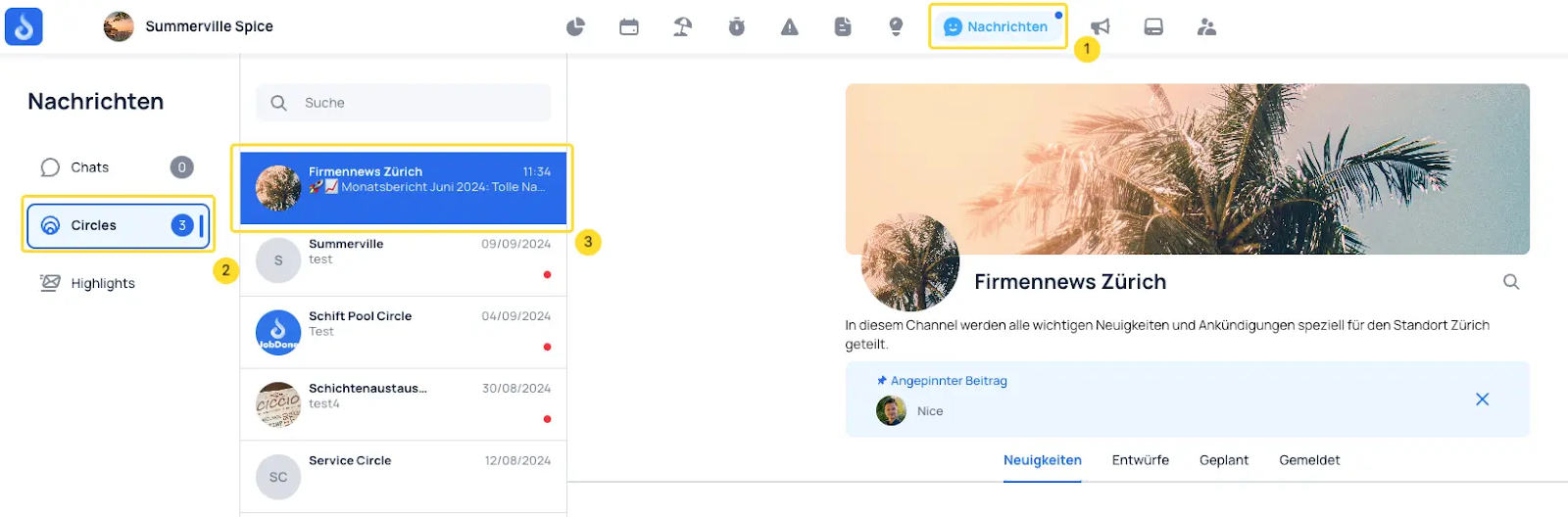
Circles
The Circles feature in JobDone offers a social interaction platform similar to LinkedIn or Facebook, designed specifically for internal communication within the organization. Unlike networks such as LinkedIn or Facebook, where users actively connect with each other, assignment to Circles in JobDone happens automatically based on the organizational structure. Members are integrated into the appropriate Circles based on their memberships in the organization, making communication more efficient and targeted. For example, organization-wide Circles or Circles based on groups, teams, individual people, or positions can be created on a project basis.

note!
More about the functions of Circles under "Cirles"
The process for setting up a Circle is explained below.
Step 1. Settings
General information about the Circle — such as profile and cover photo, name, and description — is entered here.
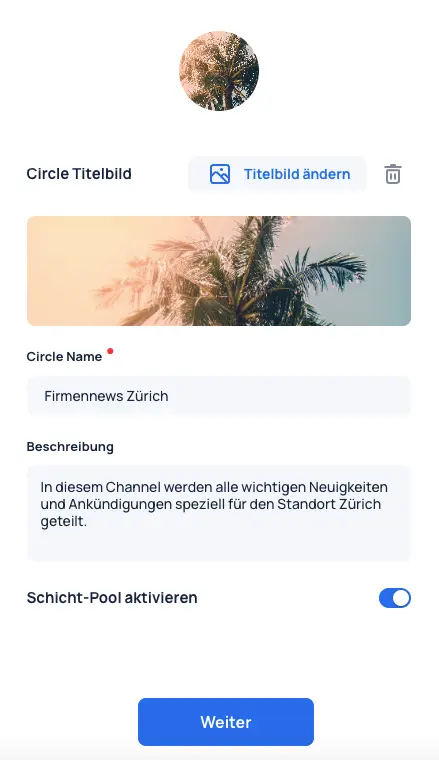
Shift Pool
In the schedule, shifts can be published as open shifts (not assigned to any employee) and then appear in the Shift Pool. Employees who belong to the Circle with an active Shift Pool can then apply for these shifts.
note!
More about the functions of Circles and Shift Pools under "Cirles"
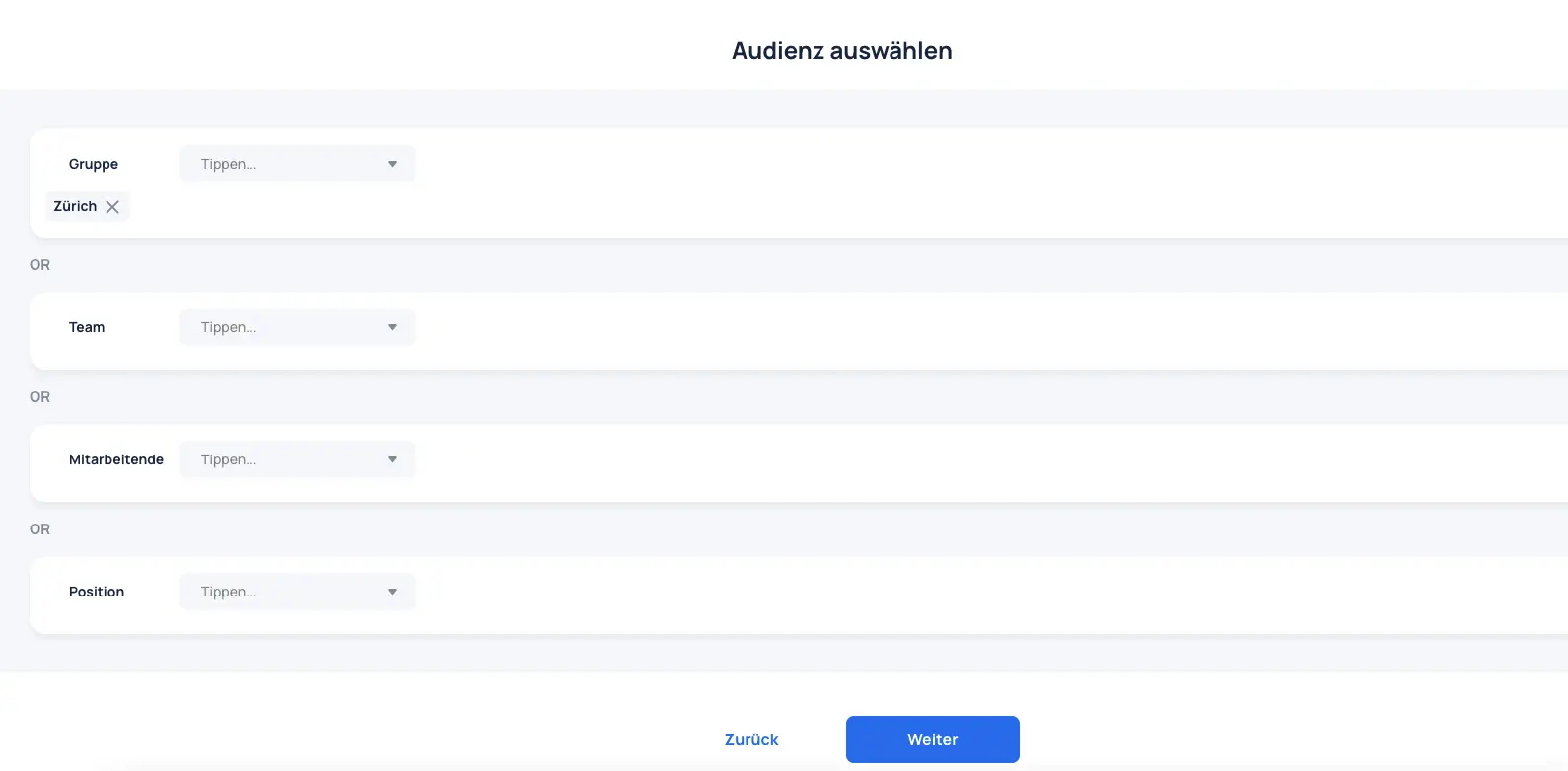
Step 2. Select Audience
In this step, you can determine which employees should have access to the Circle. Various options are available for assigning employees.
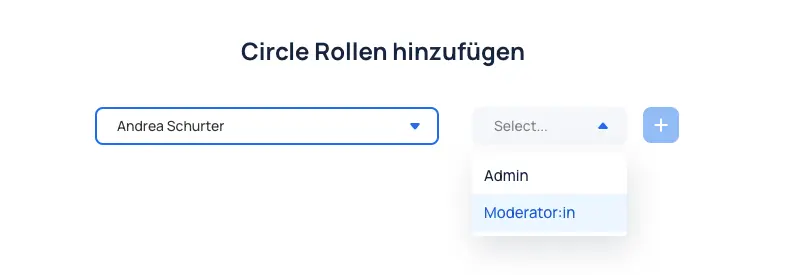
Step 3. Assign Roles
In this step, Circle roles can be assigned to employees. There are Admin and Moderator roles. Employees without extended roles receive the Member role by default.
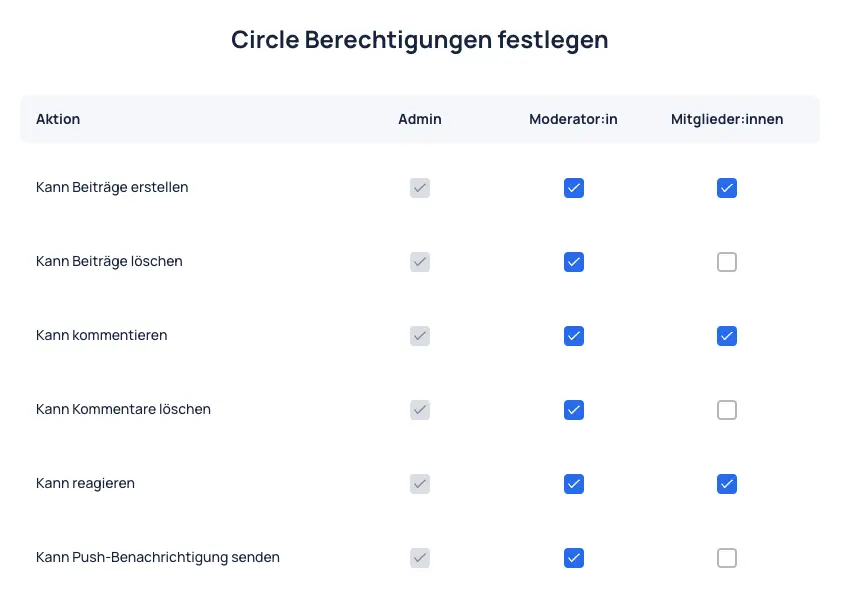
Step 4. Permissions
For the roles assigned in Step 3, the permissions for these roles can be defined below.
After creation, the Circle appears under Messages --> Circles.