Set up the Lightspeed K-Series integration
The Lightspeed K-Series integration lets JobDone import revenue data from Lightspeed. The revenue is mapped to the correct cost centers and can then be used in JobDone as a revenue metric.
You need Global Admin rights in JobDone and a Lightspeed account that is allowed to authorize the connection.
1. Open Integrations
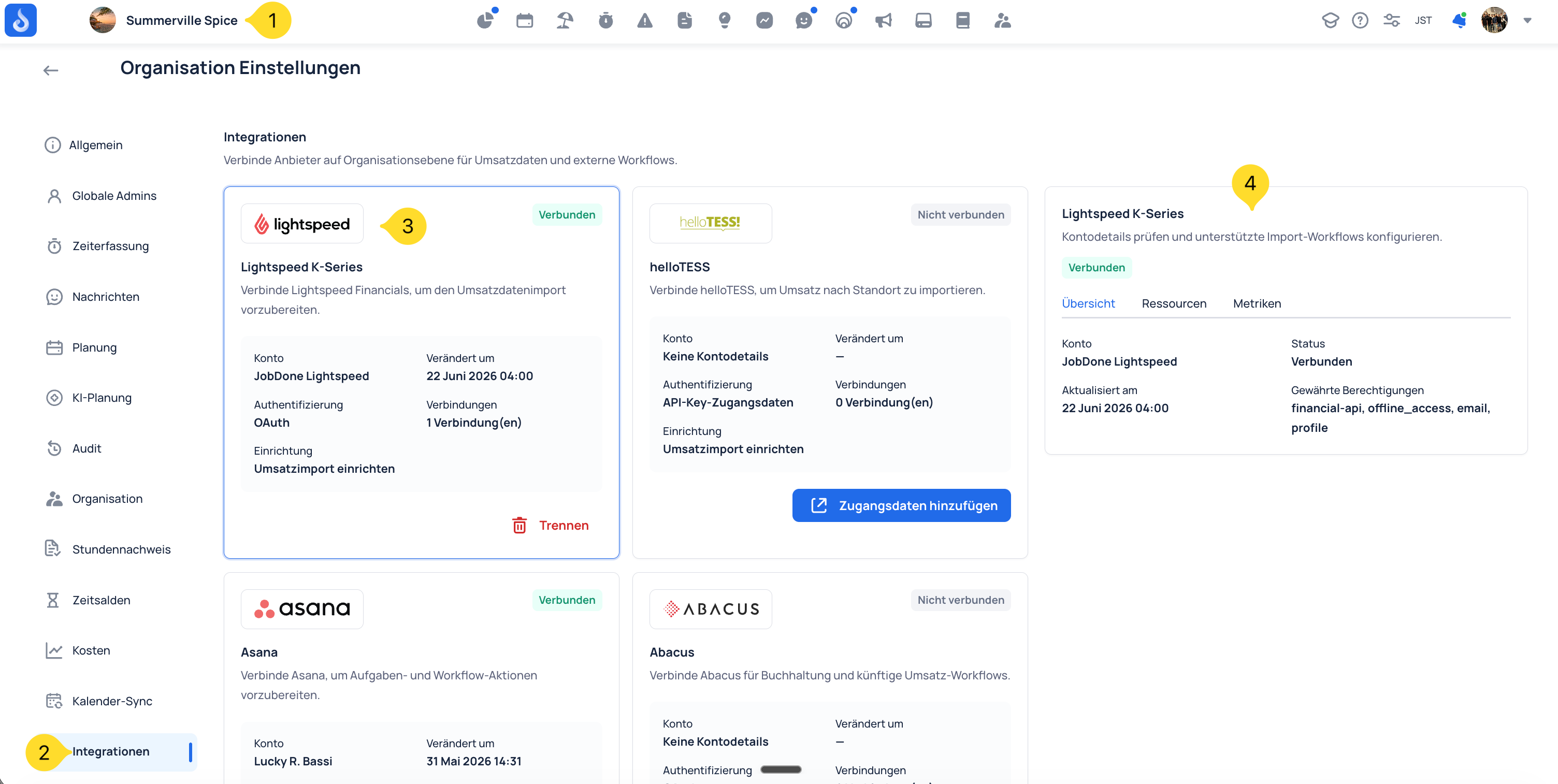
Click your organization name in the top left and open the organization settings. Then select Integrations in the left menu.
2. Connect Lightspeed
Select Lightspeed K-Series and click Connect. JobDone then starts the OAuth login with Lightspeed.
Sign in to Lightspeed and approve the requested permissions. After approval, Lightspeed redirects you back to JobDone.
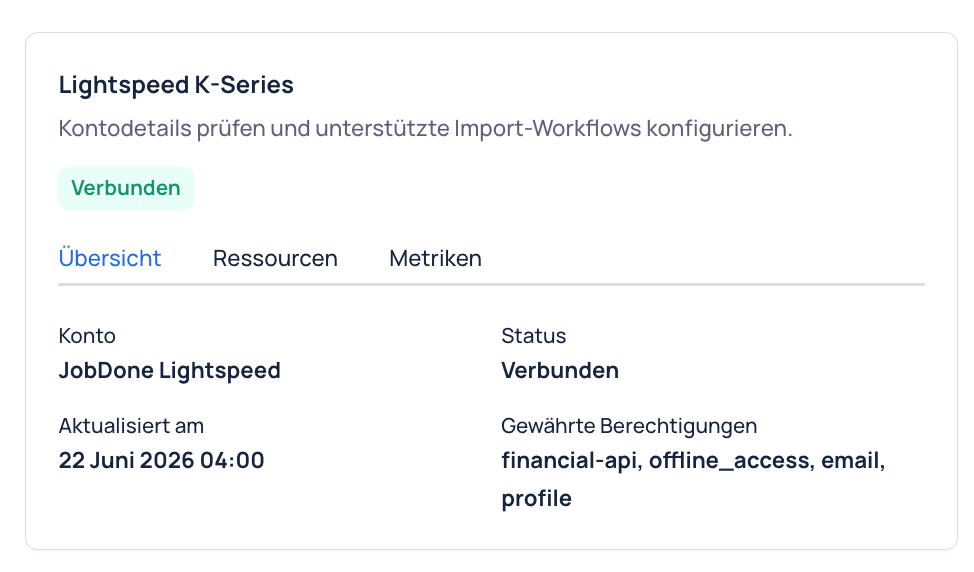
When the connection is successful, the status changes to Connected. In the Overview tab, you can see the connected account, status, last update time, and granted permissions.
3. Map Lightspeed locations to cost centers
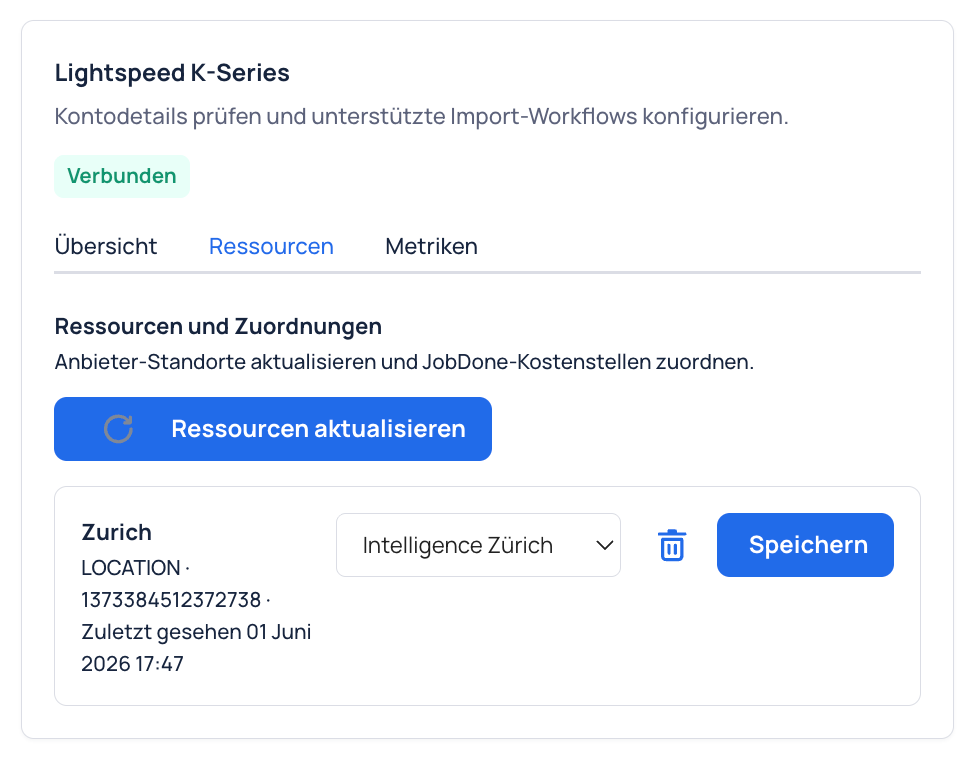
Open the Resources tab.
- Click Refresh resources so JobDone loads the current Lightspeed locations.
- Select the matching JobDone cost center for each Lightspeed location.
- Click Save for each location.
This mapping is important so imported revenue lands on the correct location or team in JobDone.
4. Select the revenue metric
Open the Metrics tab.
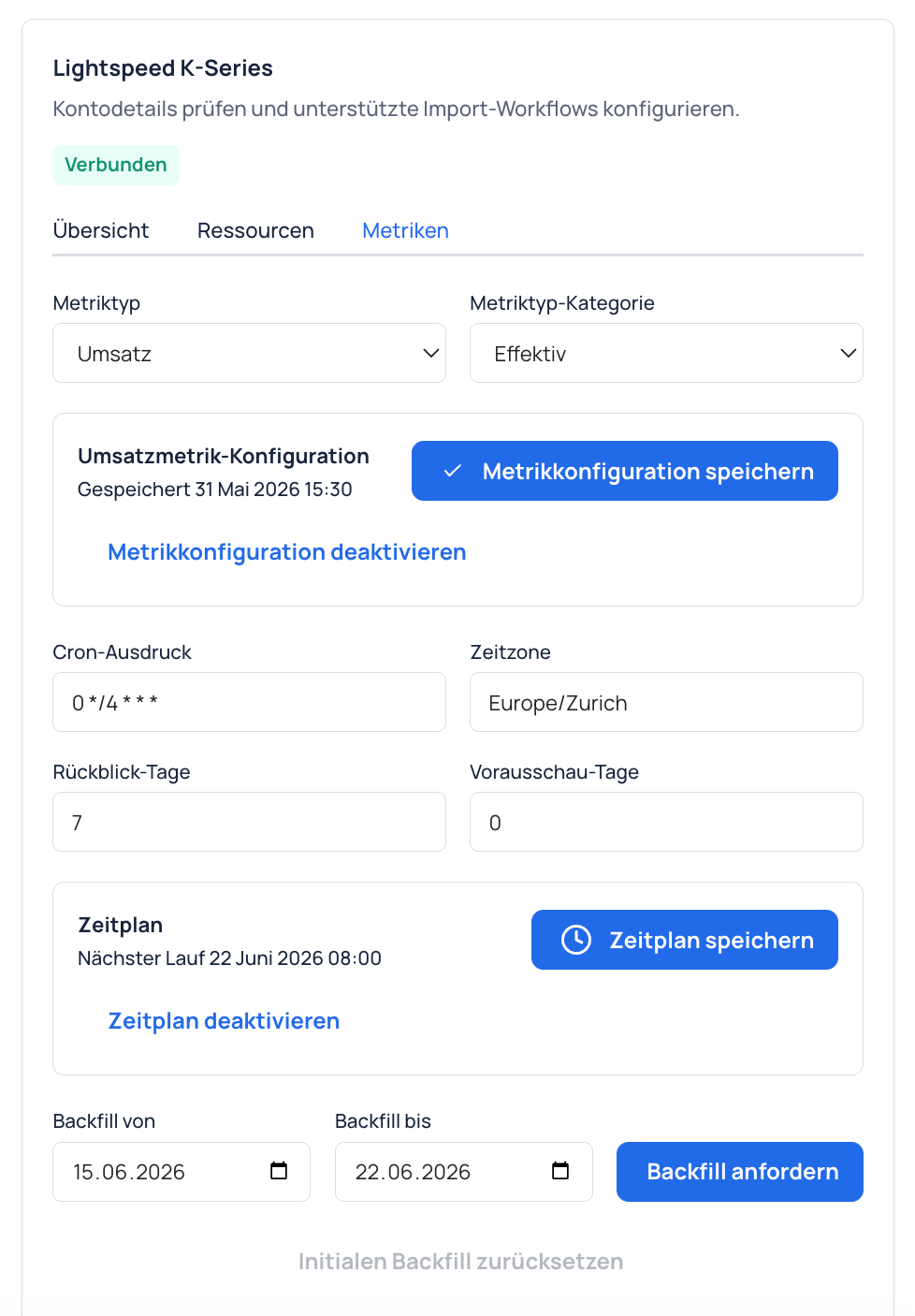
- Select Revenue as the Metric type.
- Select Actual as the Metric type category.
- Click Save metric configuration.
This tells JobDone which revenue metric should receive the Lightspeed data.
5. Review the import schedule
In the same tab, you can review the schedule for the revenue import.
- Cron expression defines when the import runs. By default, the import is scheduled every 4 hours.
- Time zone should match the organization, for example
Europe/Zurich. - Lookback days define how many past days are imported.
- Lookahead days can be used for future data if needed.
Click Save schedule if you changed the schedule.
6. Backfill missing revenue
If you want to import revenue for a past date range, use the backfill area.
- Select Backfill from and Backfill until.
- Click Request backfill.
- Afterwards, check Recent runs at the bottom to see whether the import completed.
Frequently asked questions
Why do I not see any Lightspeed locations?
First click Refresh resources in the Resources tab. If locations still do not appear, check whether the correct Lightspeed account is connected.
Can I disconnect the integration again?
Yes. On the Lightspeed card, use Disconnect to remove the connection. After that, no new data is imported through this connection.
What is the minimum setup?
For the revenue import you need three things: a connected Lightspeed connection, the mapping from Lightspeed locations to JobDone cost centers, and the revenue metric with the category Actual.