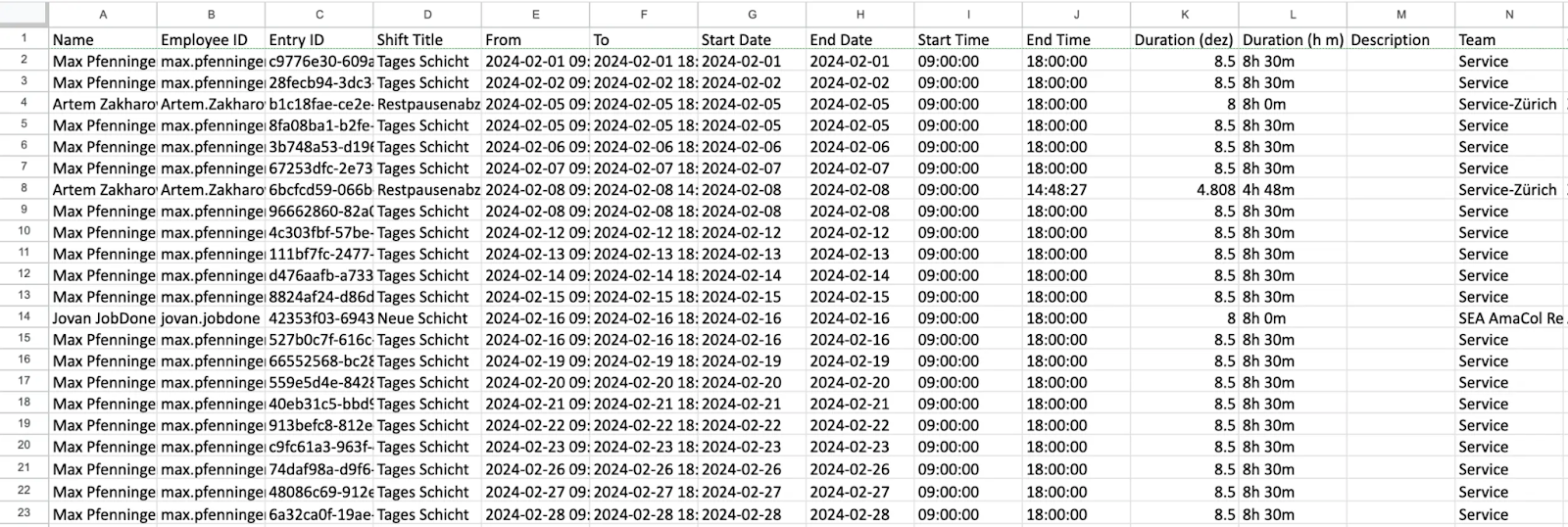
Work Export
The work export makes it possible to export employee work data in different formats and for different purposes. This guide will help you understand and make the most of the export options.
Settings
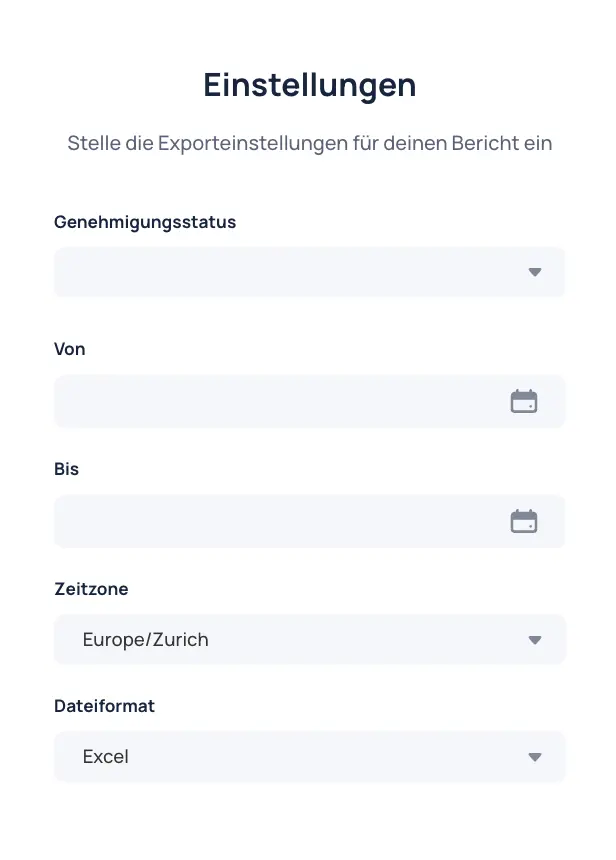
- Select approval status: Select the desired approval statuses that should be included in the export (Approved, Open, Partially approved, Rejected).
- Set time period: Define the period for which work data should be exported (from/to).
- Select time zone: Set the correct time zone for accurate export data. Default is
Europe/Zurich. - Select file format: Choose the desired format for exporting work data (
Excel .xlsxorCSV .csv).
Columns
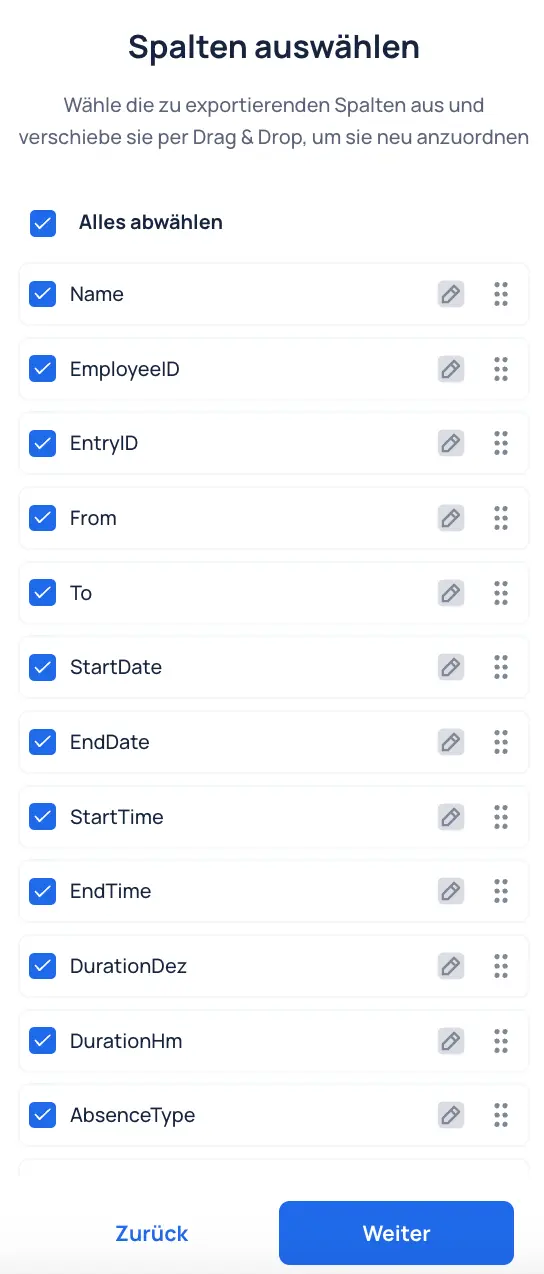
- Selection of columns: Select specific fields that should appear as columns in the export. All fields can be selected. Unneeded columns can later be hidden or deleted in the Excel or CSV file.
Audience
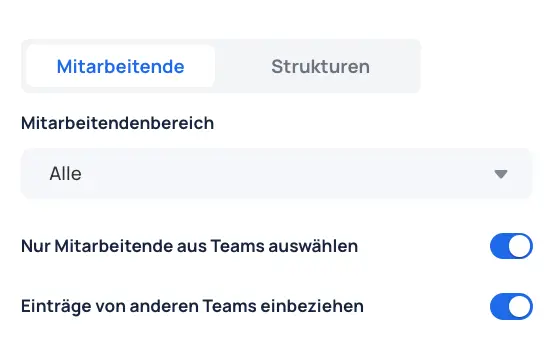
- Audience selection: Determine whether the export should be based on individual employees or organizational structure (e.g., teams, cost centers).
Options
- Group, team, or employees: Select specific groups, teams, or individual employees.
- Cost centers: Select work data based on cost centers.
- Contracts: Select employees based on assigned contracts.
Filter Employee Scope
- Filter options:
- All: Includes all employees.
- Departures and transfers: Includes only employees who have left or switched teams.
- Departures only: Includes only employees who have left.
- No departures: Includes only employees who have not left.
- Transfers only: Includes only employees who have switched teams.
Additional Settings
- Select only employees from teams:
- Active: Only team-level memberships are considered. Group-level memberships are ignored.
- Inactive: Group-level memberships are also considered.
- Include entries from other teams:
- Active: If selection is done by team, entries from selected users in other teams are also included.
- Inactive: Entries in other teams for users from the selected team are not included.
Result