Absences
Absences can be created by managers or admins, or requested by employees via the smartphone app. Depending on the configuration, requested absences can then be approved or rejected by managers or admins.
Create Absences in the Schedule
In JobDone, in addition to work shifts, absences can also be created for employees in the schedule.
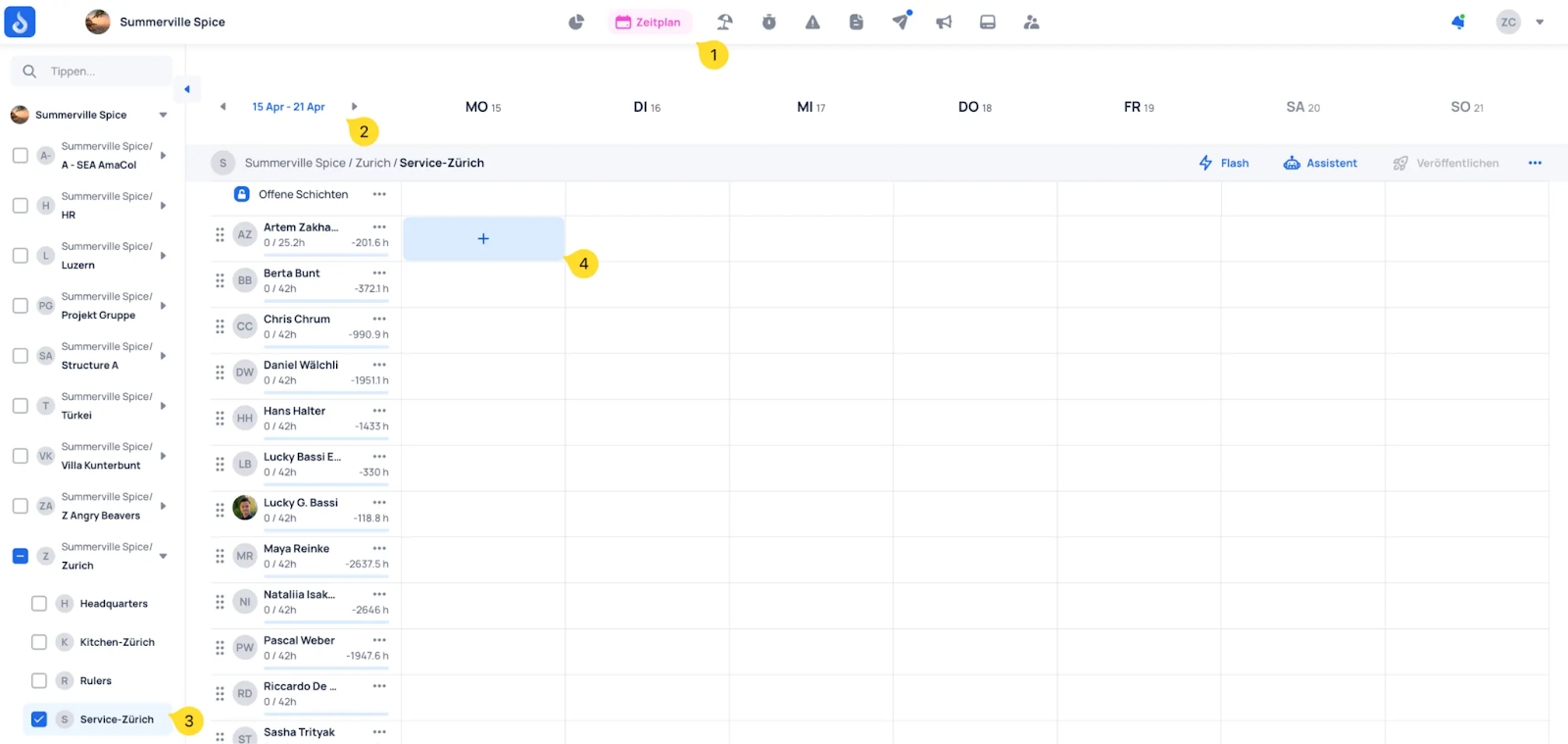
- Open the schedule
- Select the period for which you want to create a schedule
- Select the desired team
- Click on a cell in the shift plan to create an absence
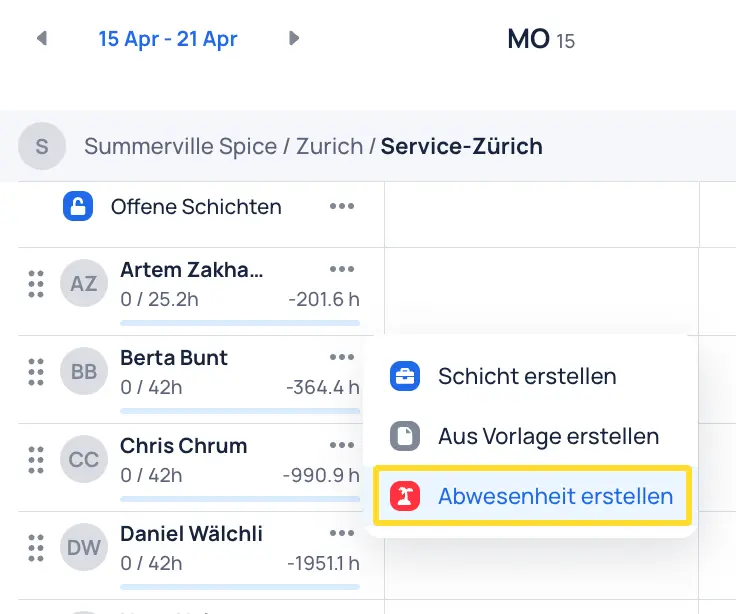
Select Create absence
Select the desired absence type and choose the absence period.
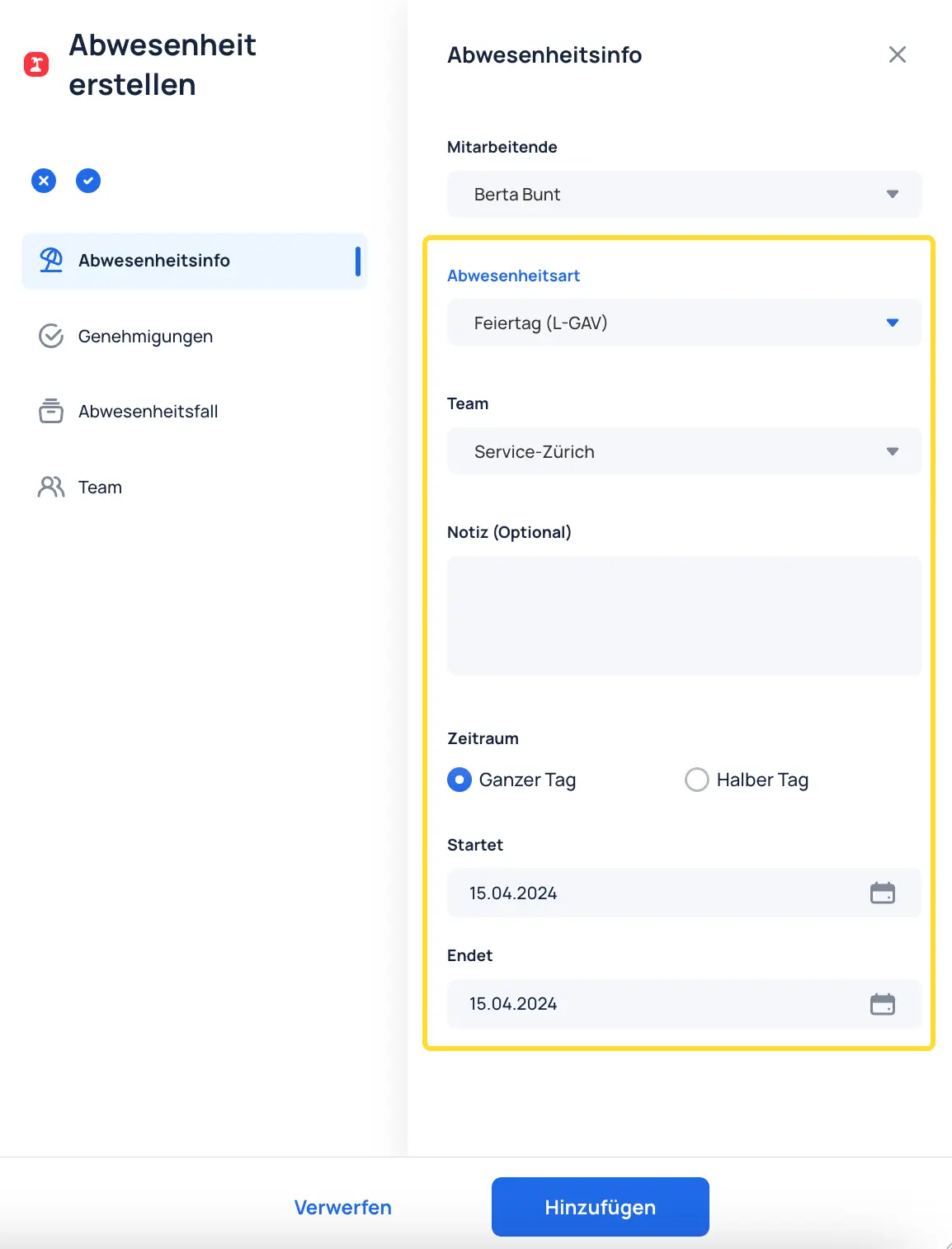
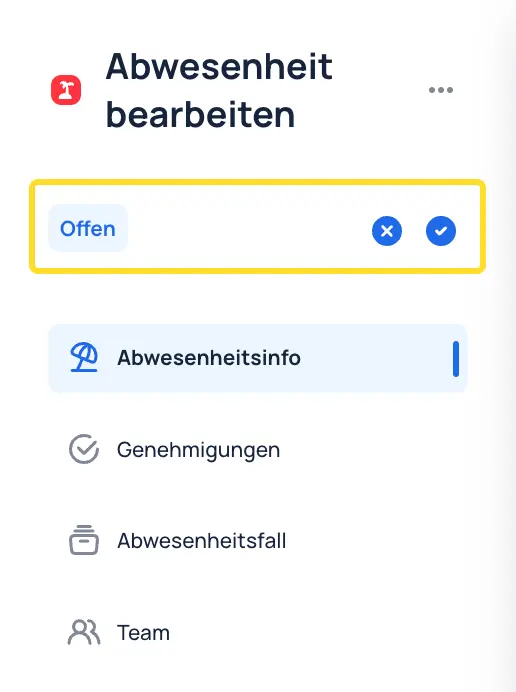
Click Save to create the absence. The absence will appear hatched, meaning it has not yet been approved and has the status "open". It is therefore not yet visible to employees.
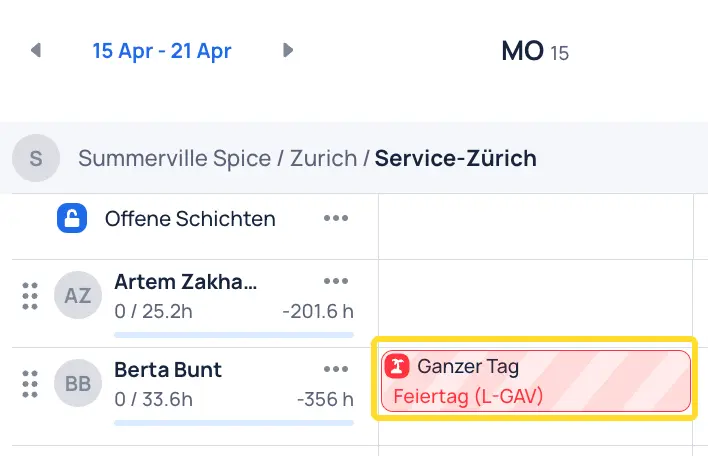
An open absence can either be rejected or approved.
Lock Absences
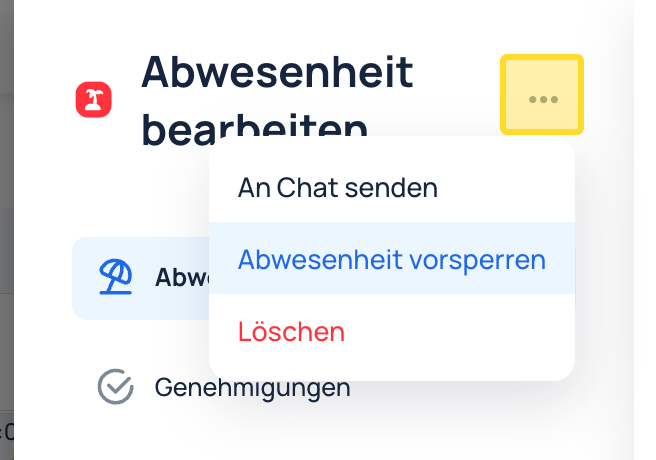
Admins can lock absences so that they cannot be deleted or modified by managers.
-
Click on the "three dots" in the approved absence
-
Lock absence
Requesting Absences
Employees can request absences using the JobDone app on their smartphone.
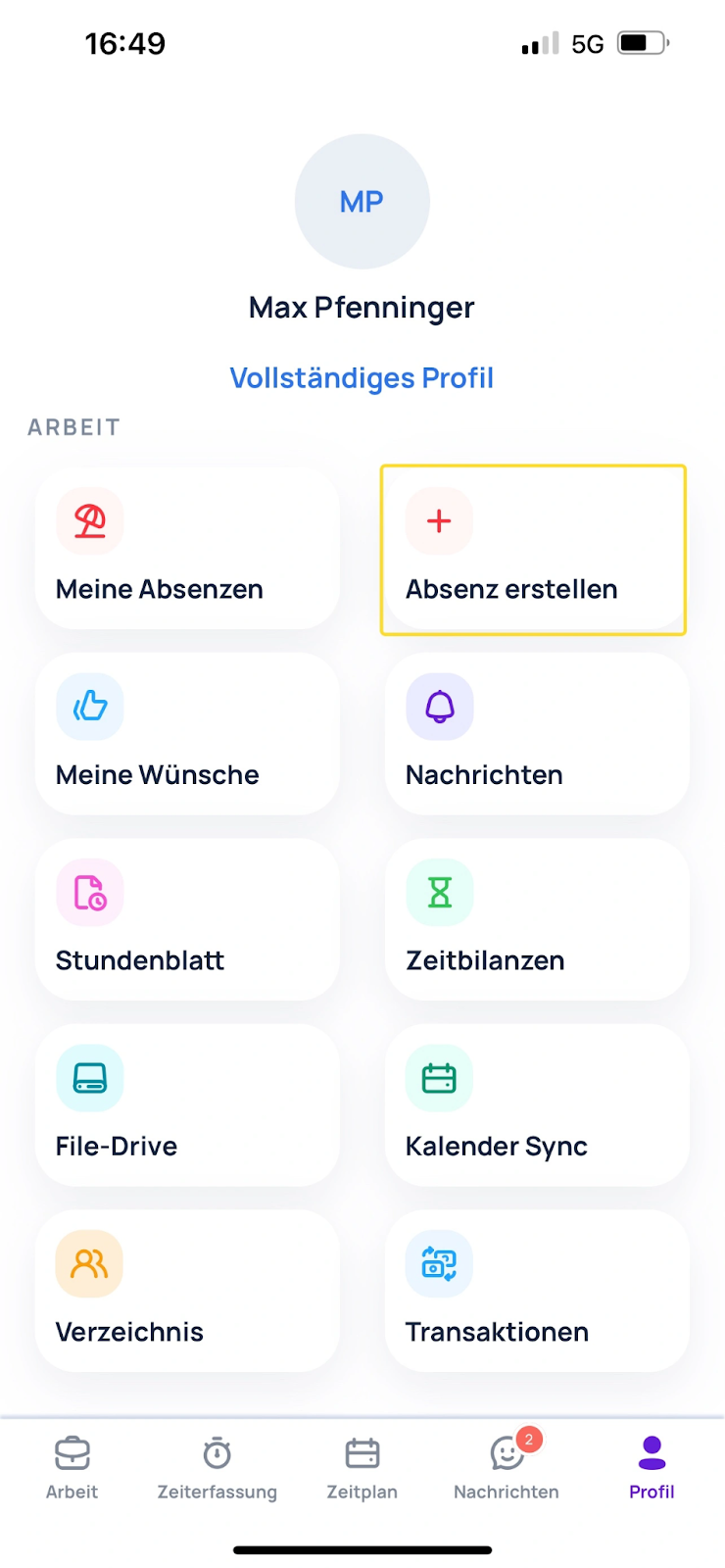
- Under Profile -> Create absence
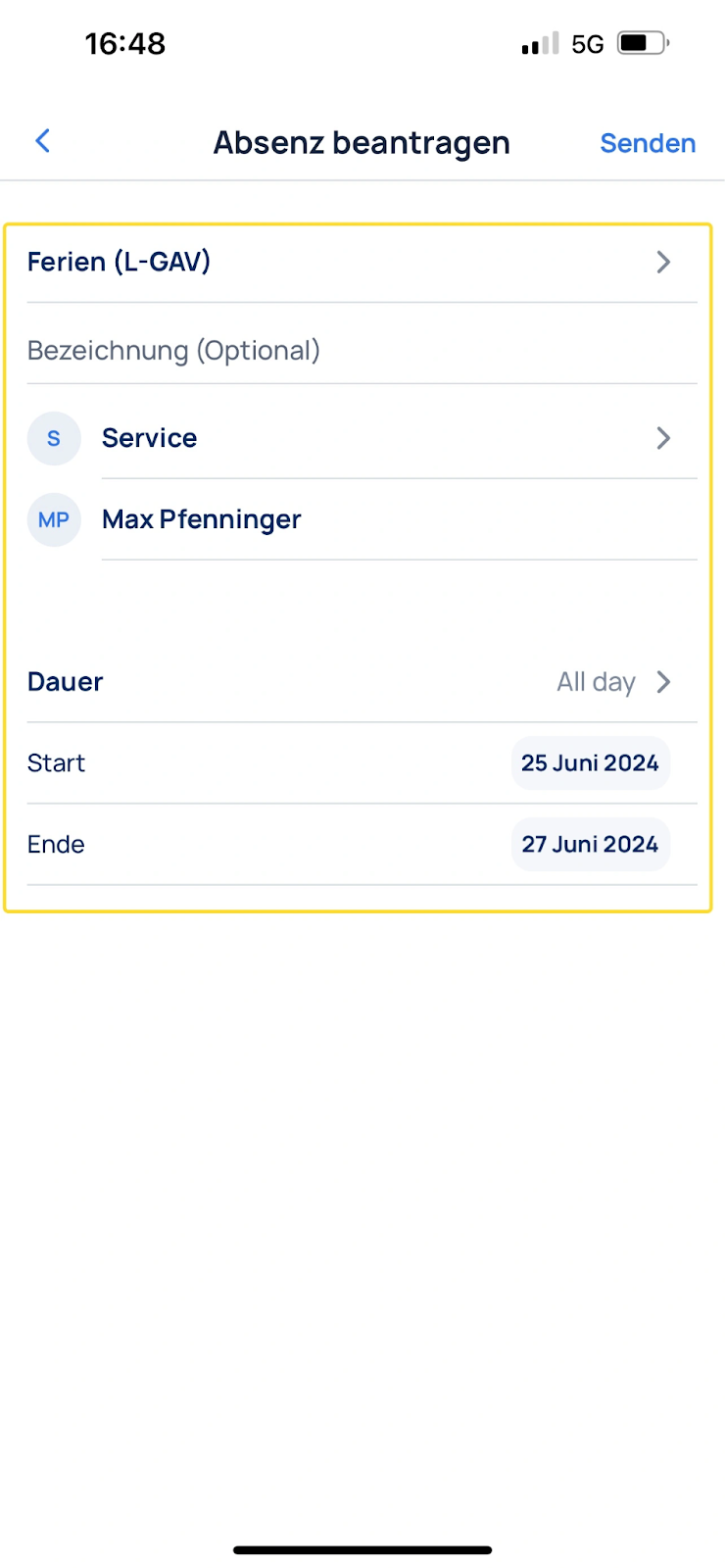
- Here, employees can select their desired absence type, team, and absence duration, and submit the request
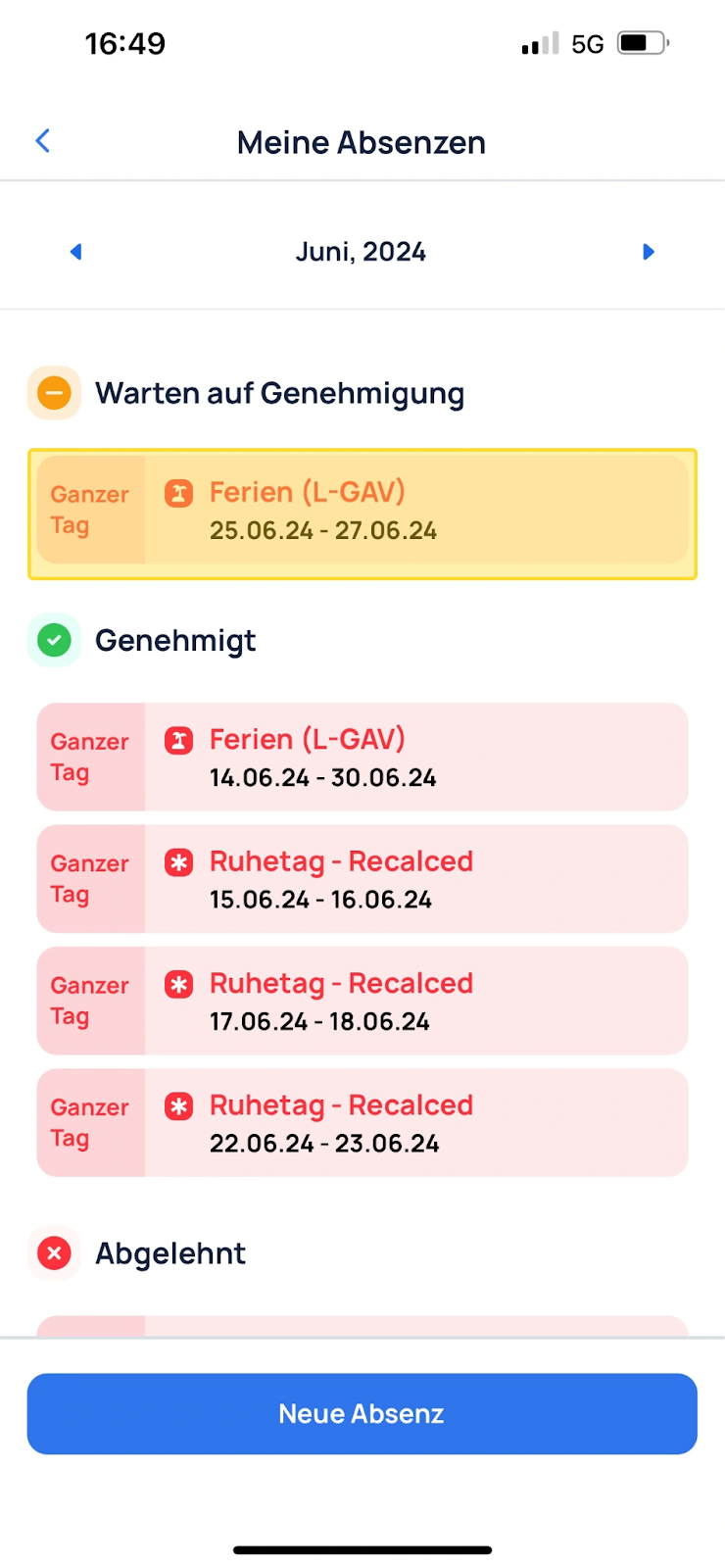
- Under Profile -> My absences, employees have an overview of their absences with the corresponding approval status
Approvals
Absences can have the following statuses:
- Open (awaiting approval)
- Approved
- Partially approved
- Rejected
Who can/must approve absences can be defined per absence type under Organization -> Contracts -> Absence types -> Approvals.
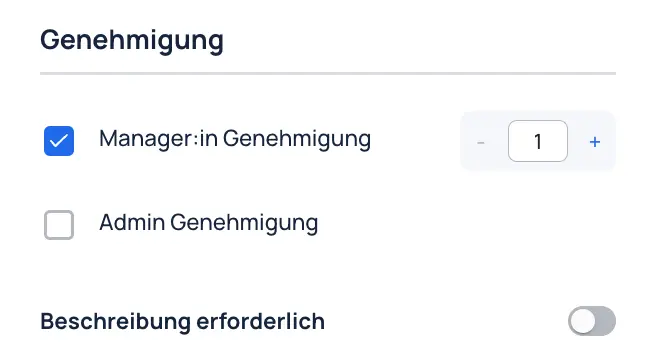
By default, manager approval is active. The number of manager approvals required to approve an absence can be configured. An additional admin approval can also be enabled, so that both approvals are required to approve an absence.
Global admins can lock absences; these absences can then no longer be modified by managers or admins. An example of this could be a "Sick" absence that has already been documented by a global admin with a doctor's note.
You can find the various options for approving absences in ==Chapter 5. Publishing Shifts==.