JobDone logoJobDone logo
JobDone Knowledge Base
L-GAV - SwitzerlandOrganization ConfigurationProcessesFeature Overview
English
  • Deutsch
  • English
  • Feature Overview
    • Messenger
    • Engagement
    • Absences
    • Reports
    • Analytics
    • File Drive
    • Organization
    • Dashboard
    • Menu Overview
    • Schedule
    • Open Shifts
    • Shift Invite
    • Shift Swap
    • Time Tracking
      • Lending Employees / Time Tracking in Other Teams
    • Warnings
    • Directory
    • Shift Pool
    • Calendar Sync with Google
    • Notifications
    • Transactions
    • Wishes
  • Feature Overview
  • Shift Swap

Shift Swap

With Shift Swap, employees can exchange shifts directly with each other, without requiring managers to manually edit the schedule. This reduces planning effort and gives employees more flexibility in day-to-day scheduling.

A shift swap is requested directly in the team schedule. Employees select a colleague's shift and propose one of their own shifts in return.

After the request is sent, the requested employee must confirm it first. The request then appears in the Shift Pool, where a responsible person can approve or reject it.

After approval, the shifts are swapped automatically in the schedule.

Shift Swap increases flexibility for teams and reduces manual coordination work for team leads.

Flow in the app​

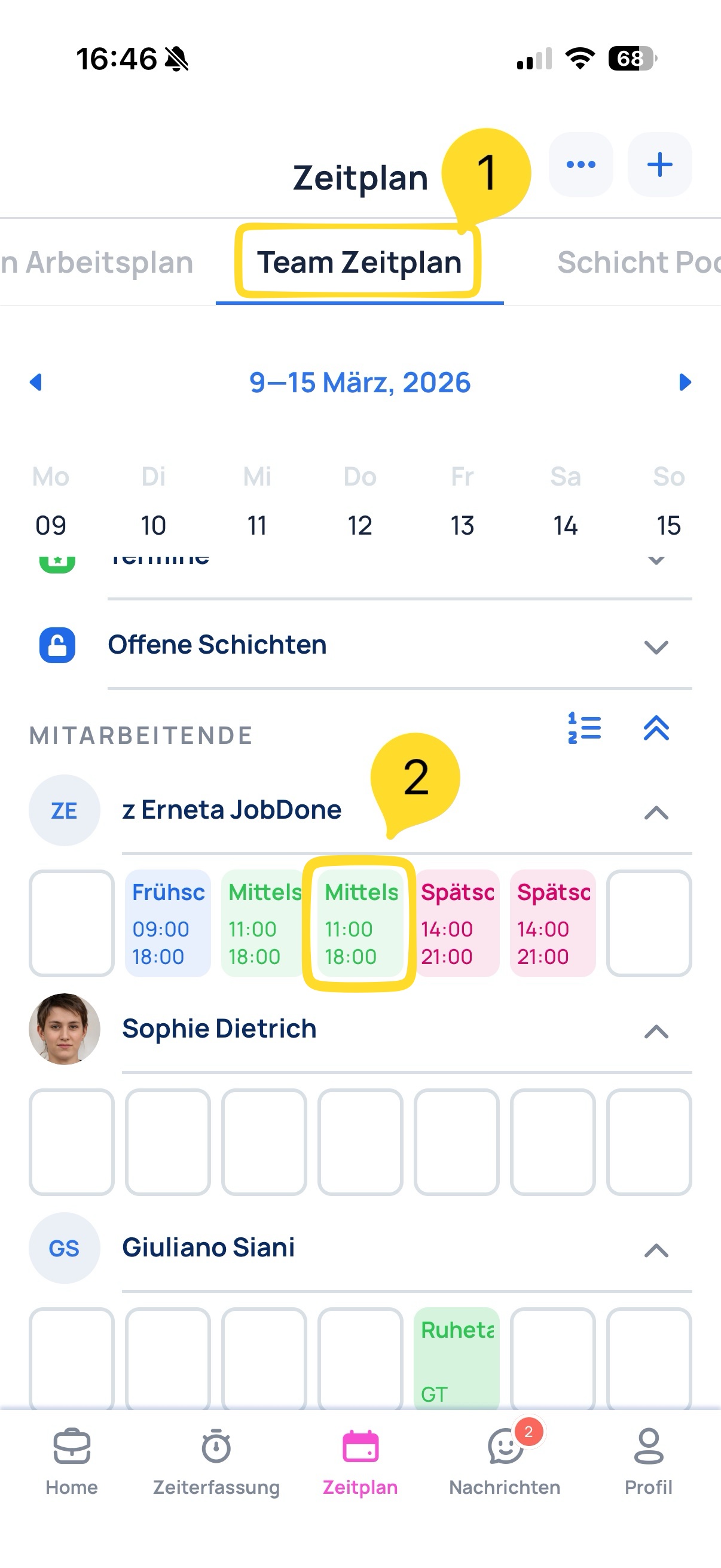
1. Open Team Schedule​

Open Team Schedule

2. Select a colleague's shift​

Select colleague shift in Team Schedule

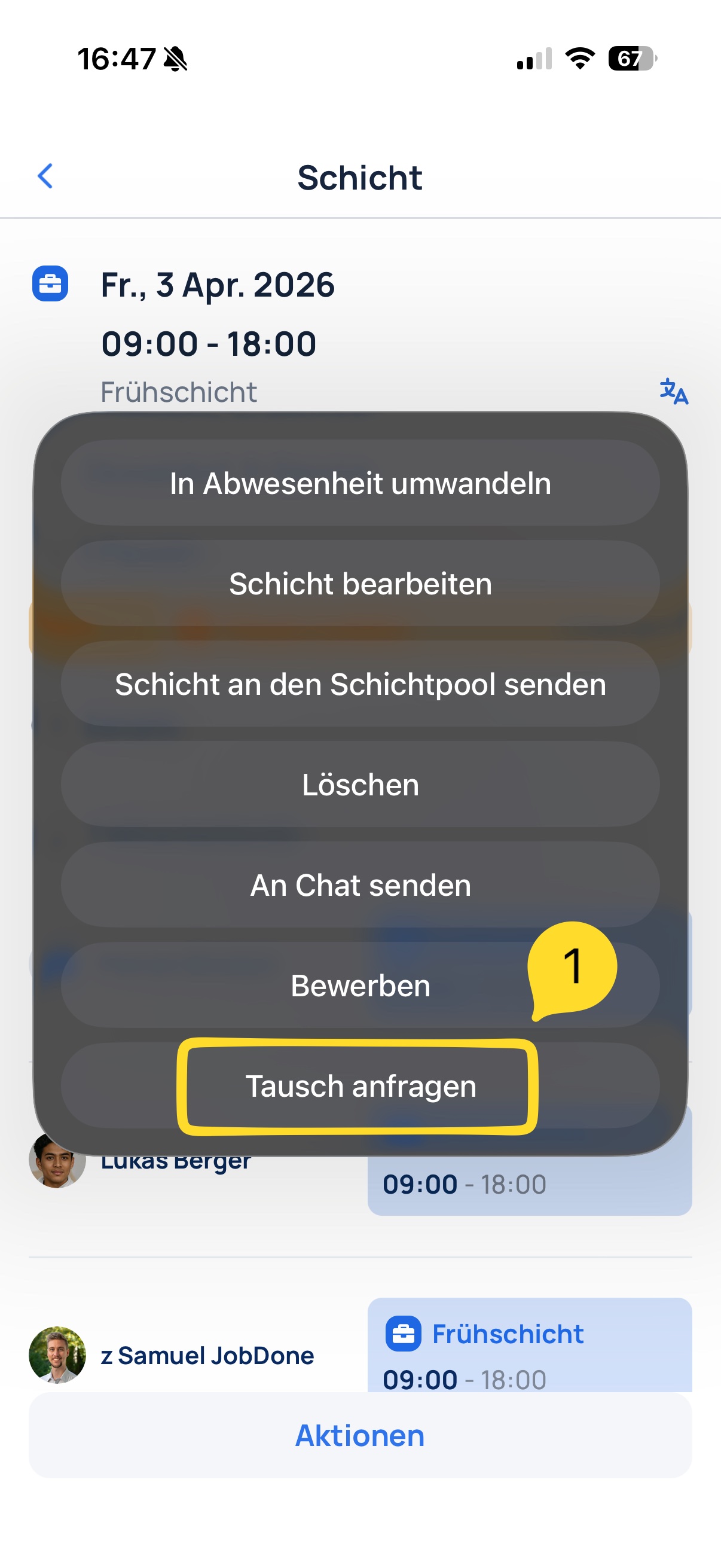
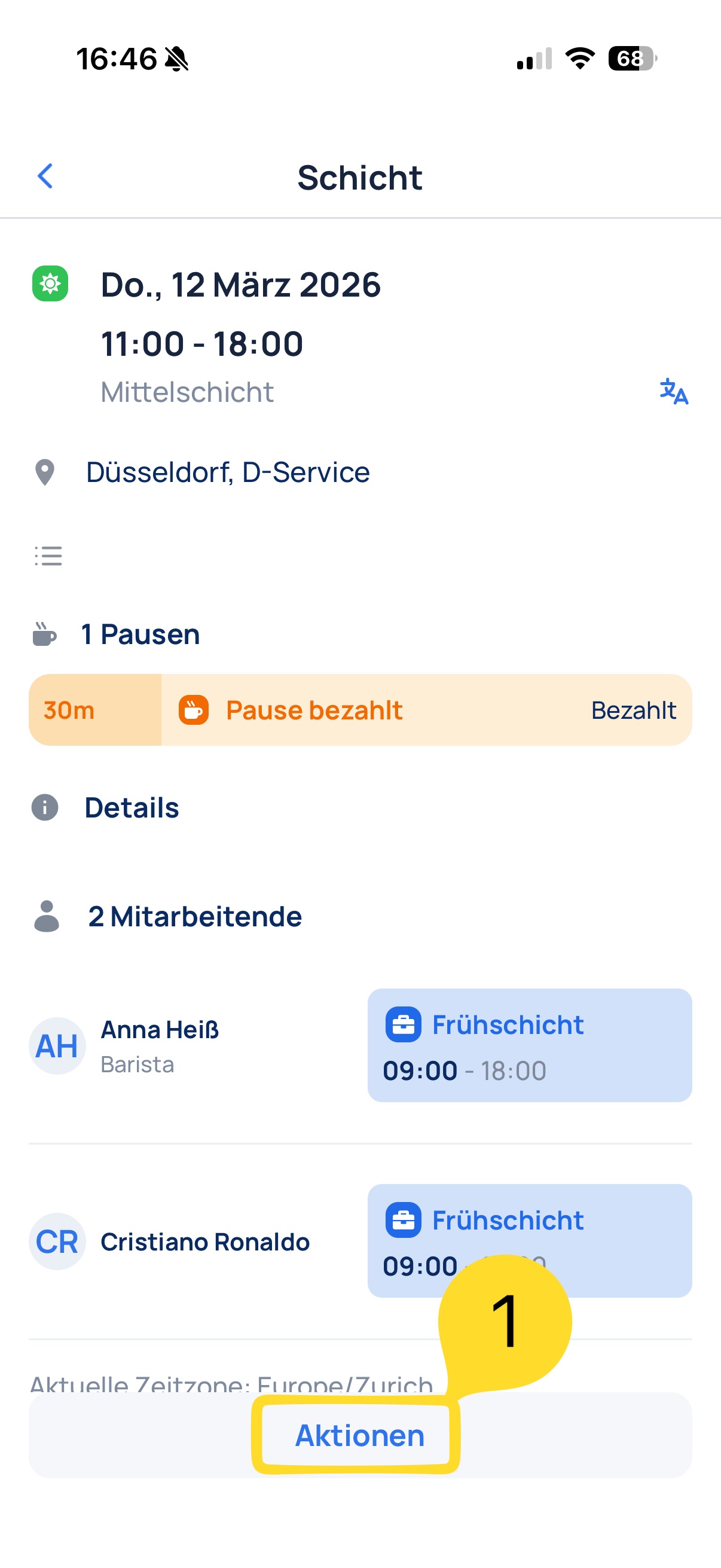
3. Open Actions and choose “Request swap”​

Shift details with actions Selecting request swap action

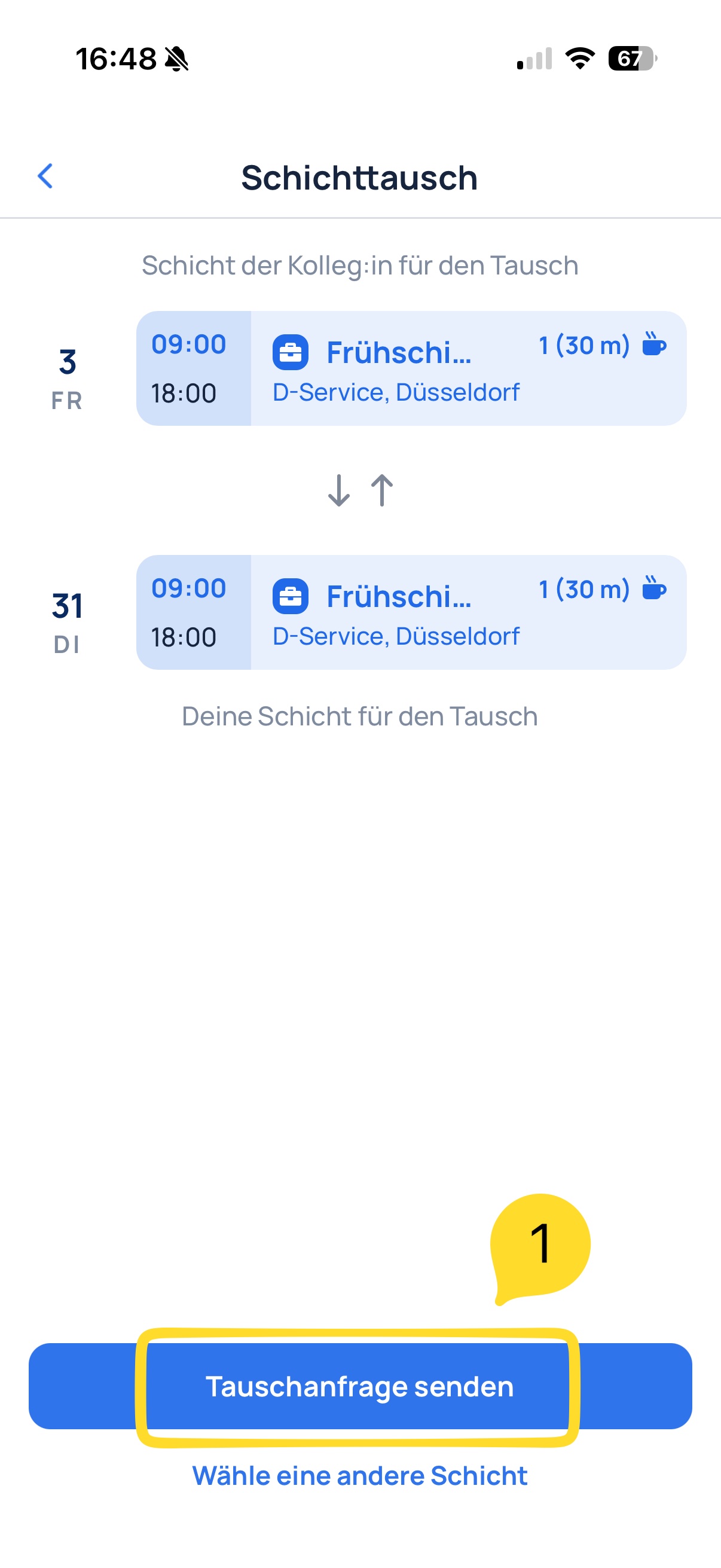
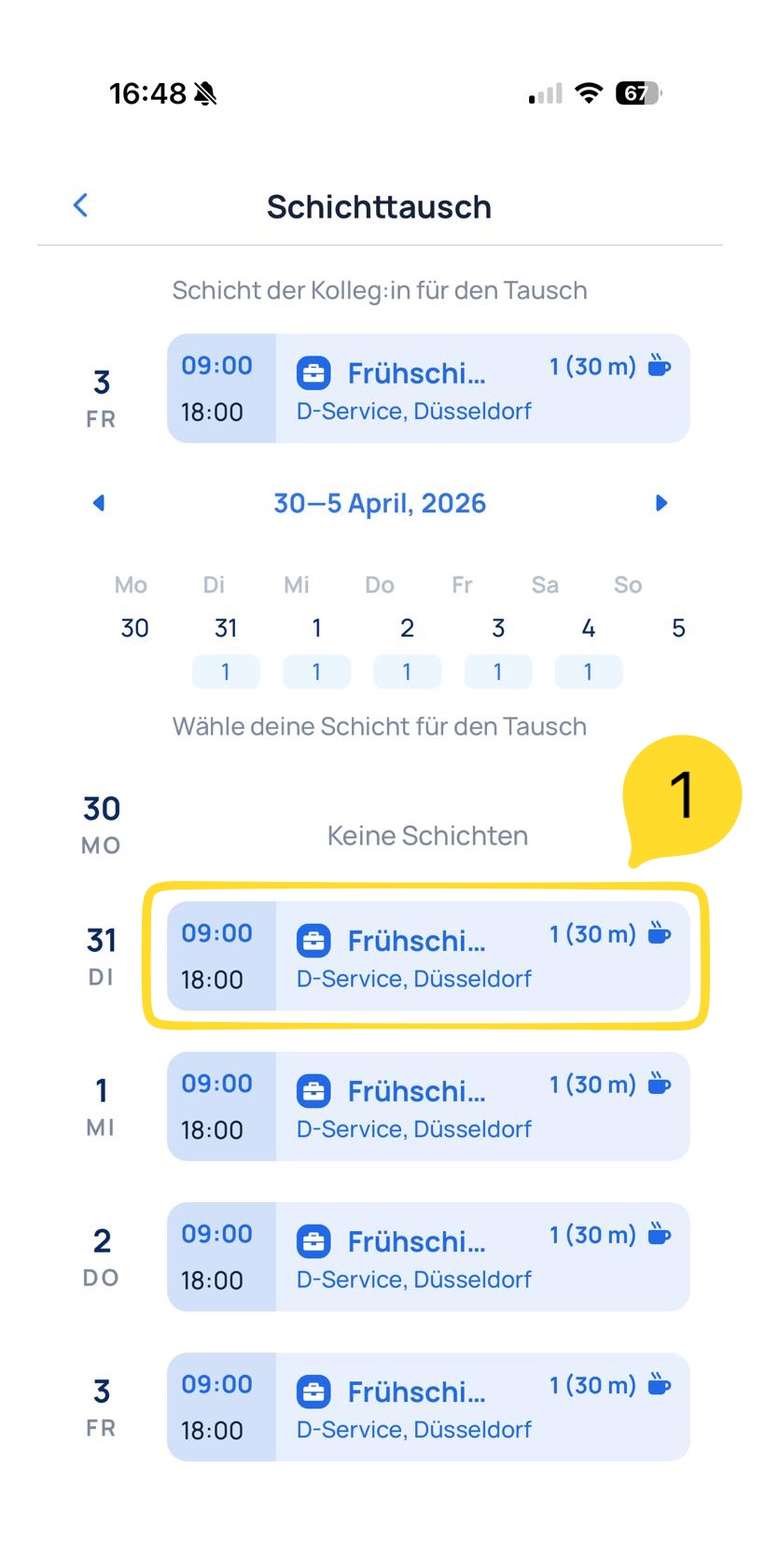
4. Propose your own shift for the exchange​

Selecting own shift for swap

5. Send the swap request​

Send swap request

What happens next?​

  1. The requested employee confirms the swap request.
  2. The request then appears in Shift Pool under To approve.
  3. A responsible person can approve or reject it.
  4. After approval, shifts are swapped automatically in the schedule.

Related links:

  • Schedule
  • Shift Pool
Previous
Shift Invite
Next
Time Tracking
  • Flow in the app
    • 1. Open Team Schedule
    • 2. Select a colleague's shift
    • 3. Open Actions and choose “Request swap”
    • 4. Propose your own shift for the exchange
    • 5. Send the swap request
  • What happens next?
JobDone
 Download on the App Store ▶ GET IT ON Google Play

Knowledge Base

Home L-GAV - Switzerland Organization Configuration Processes Feature Overview JobDone Updates

Pricing

Pricing

Resources

Support Partnership Contact Us About Us

Legal

Terms & Conditions Privacy Imprint Cookies
All rights reserved © 2023 JobDone
Brought to you with ♥ by the JobDone Team