Calendar Sync with Google
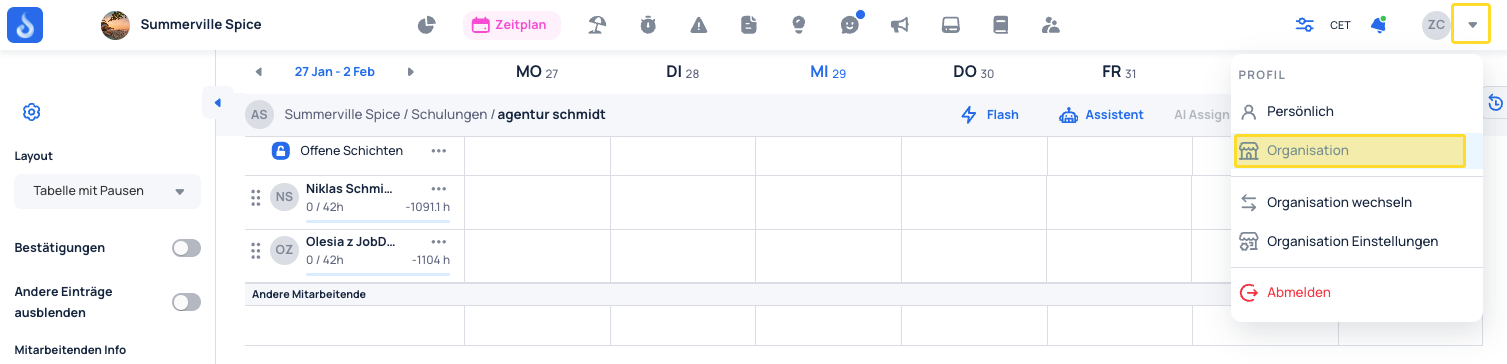
Step 1: Open your organization profile
Navigate to your organization profile.
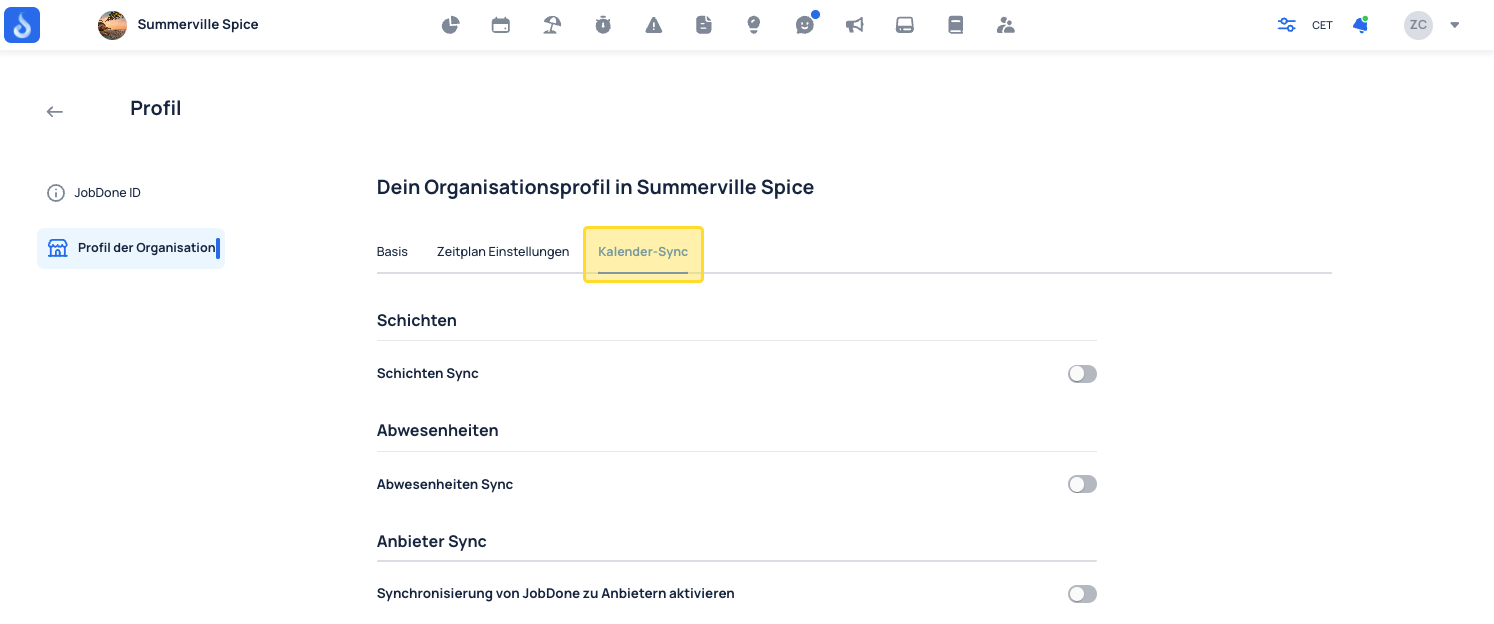
Step 2: Open Calendar Sync settings
Click on Calendar Sync.
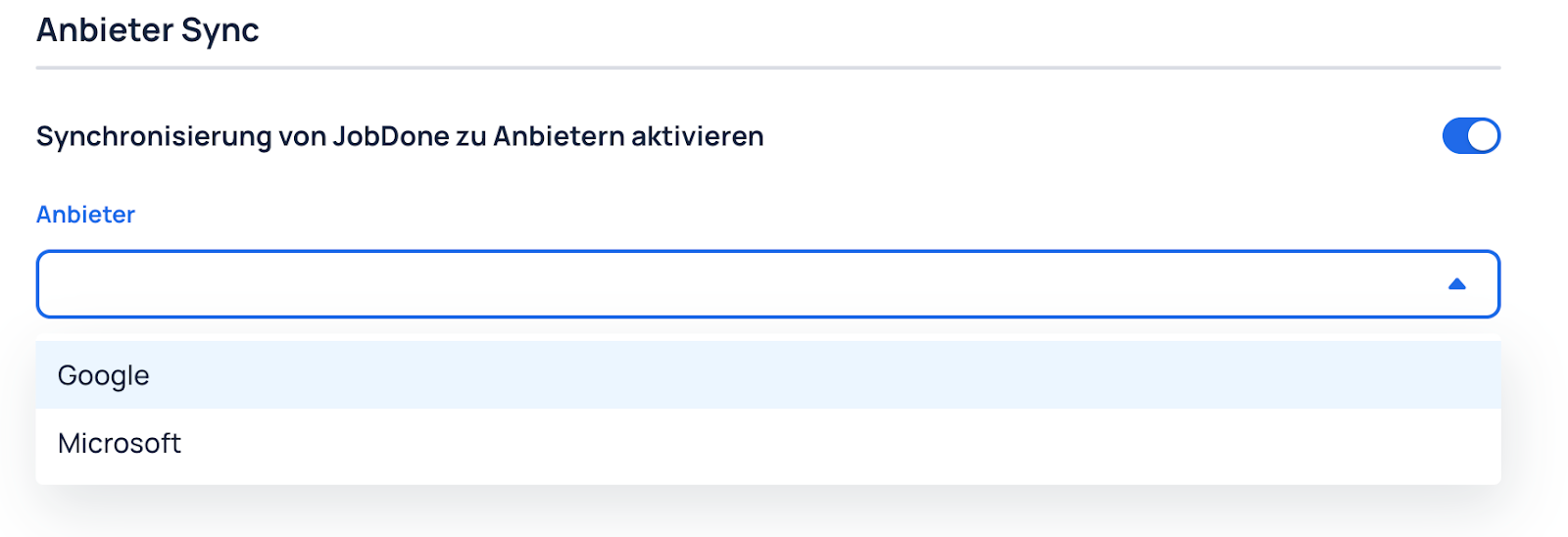
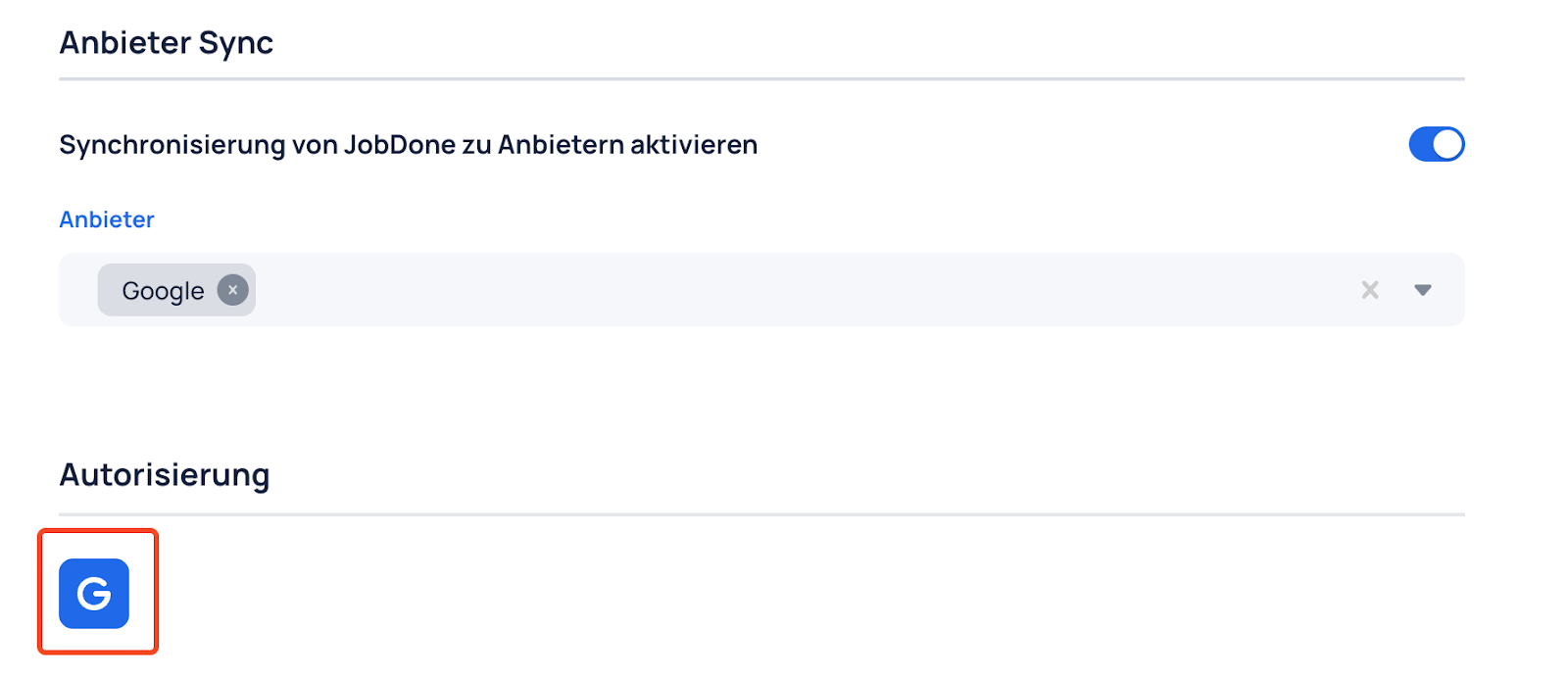
Step 3: Enable sync
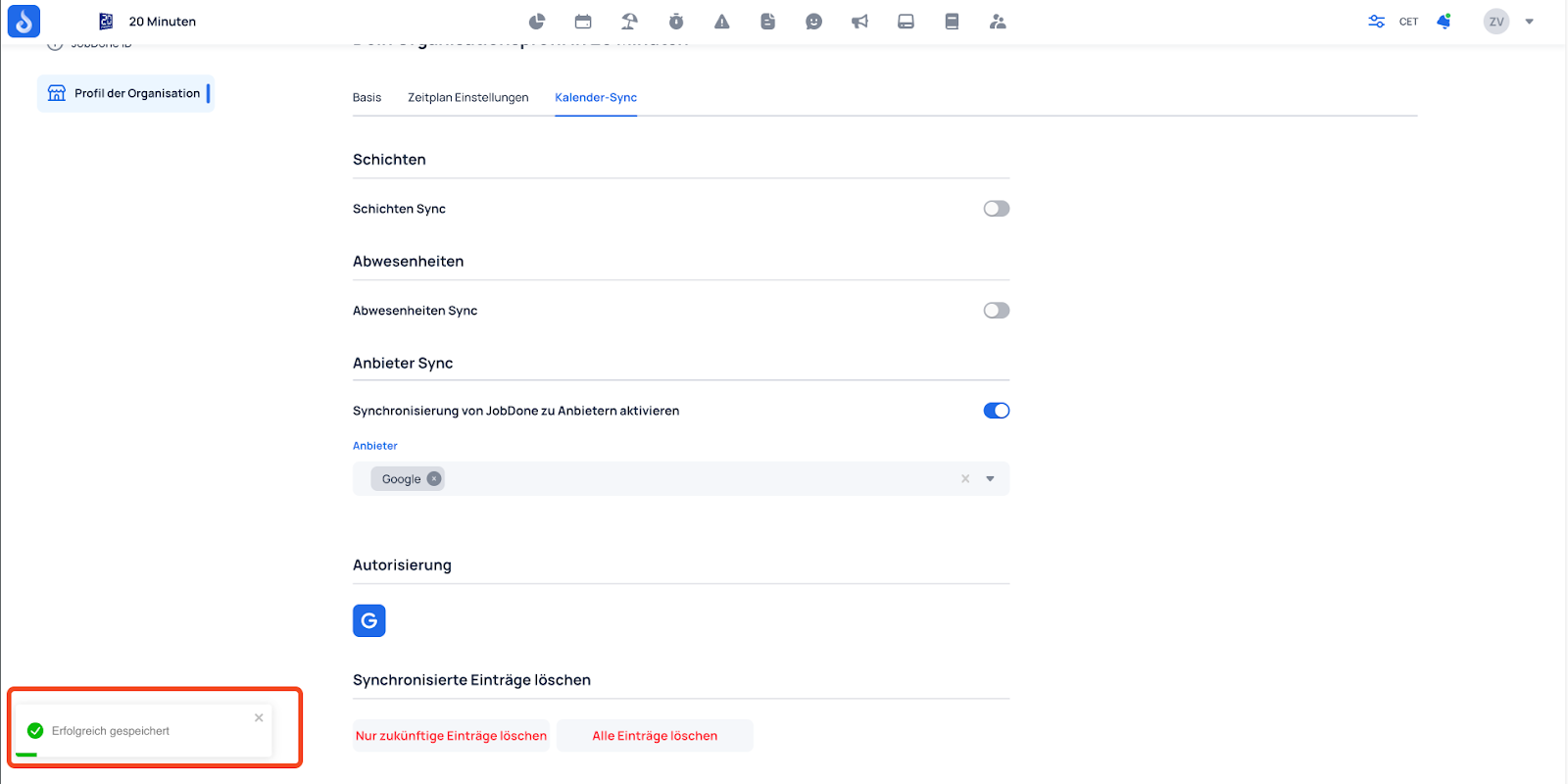
Enable sync from JobDone to providers and select Google.
Step 4: Link your Google account
Click the button with the Google icon to link your Google account.
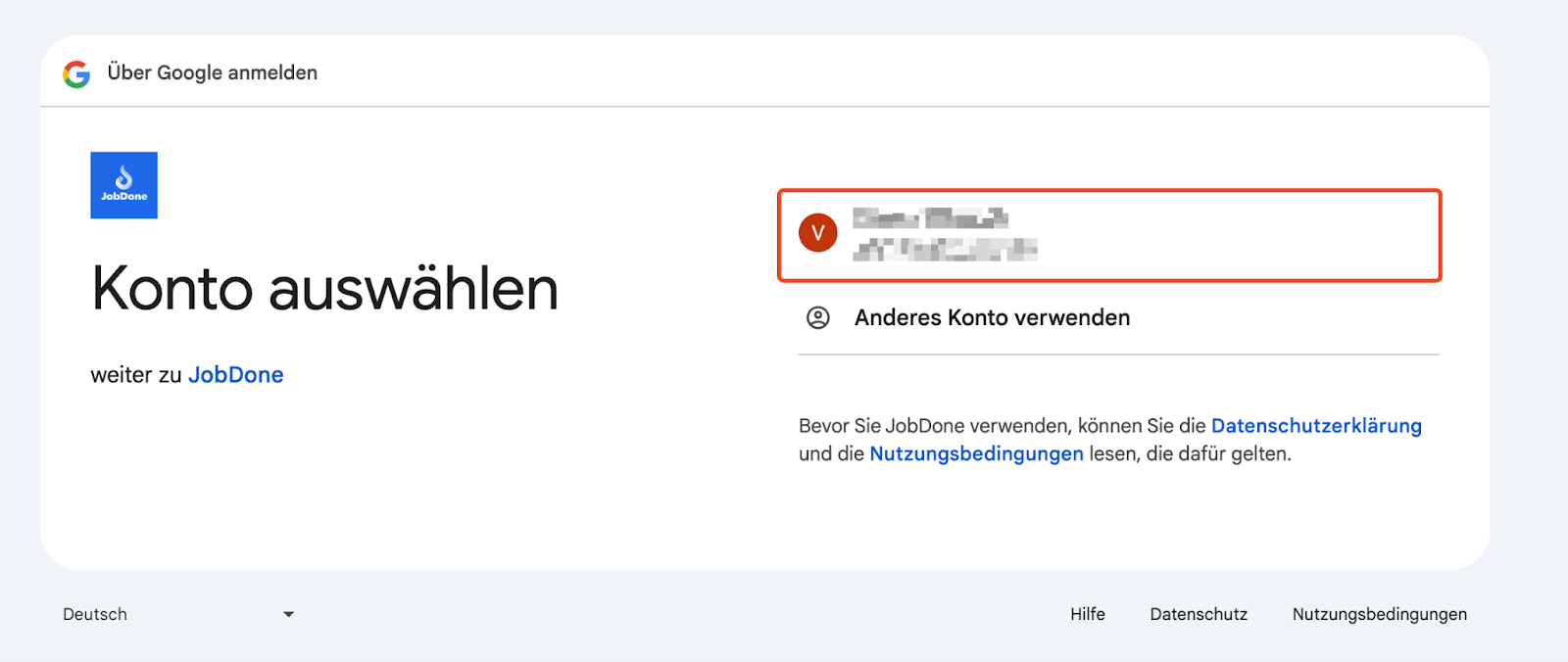
Step 5: Select a Google account
Select the desired Google account from the list or sign in.
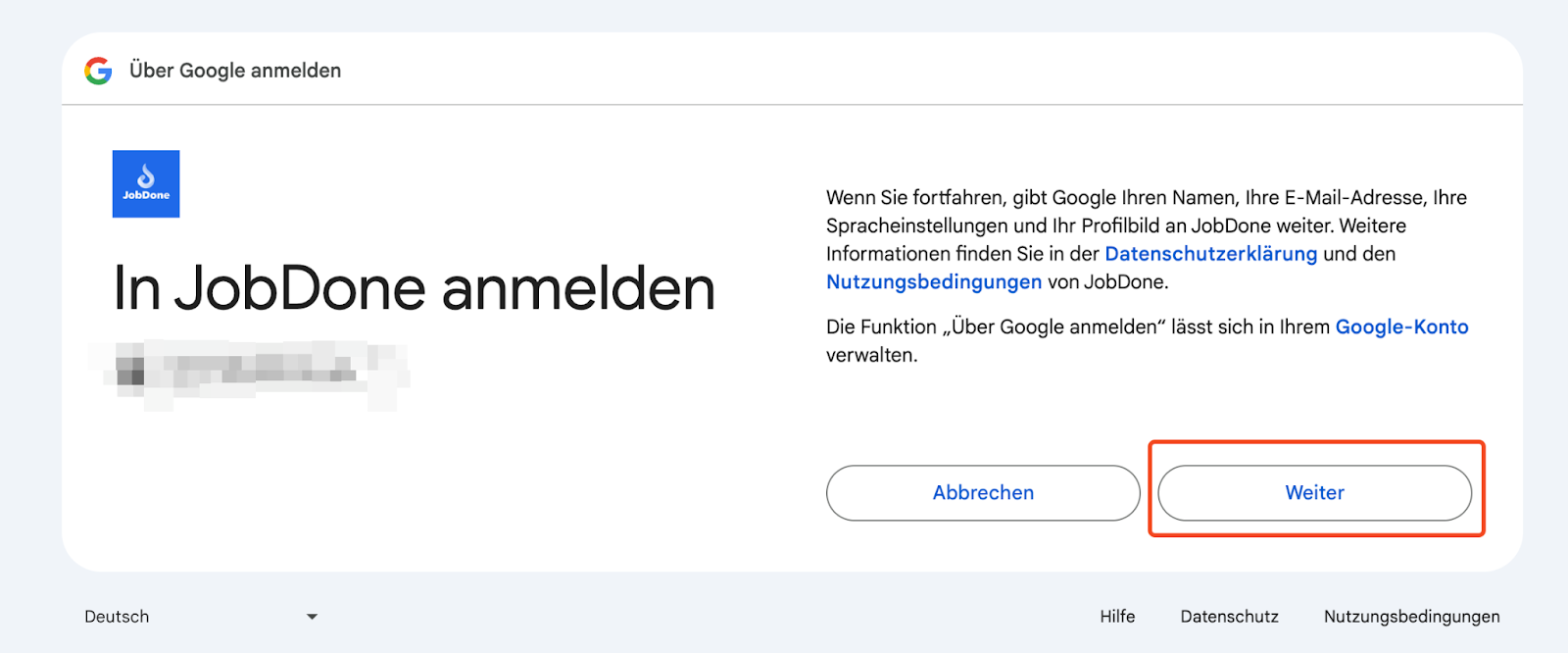
Step 6: Accept the privacy policy and terms of use
Read and accept the privacy policy and terms of use.
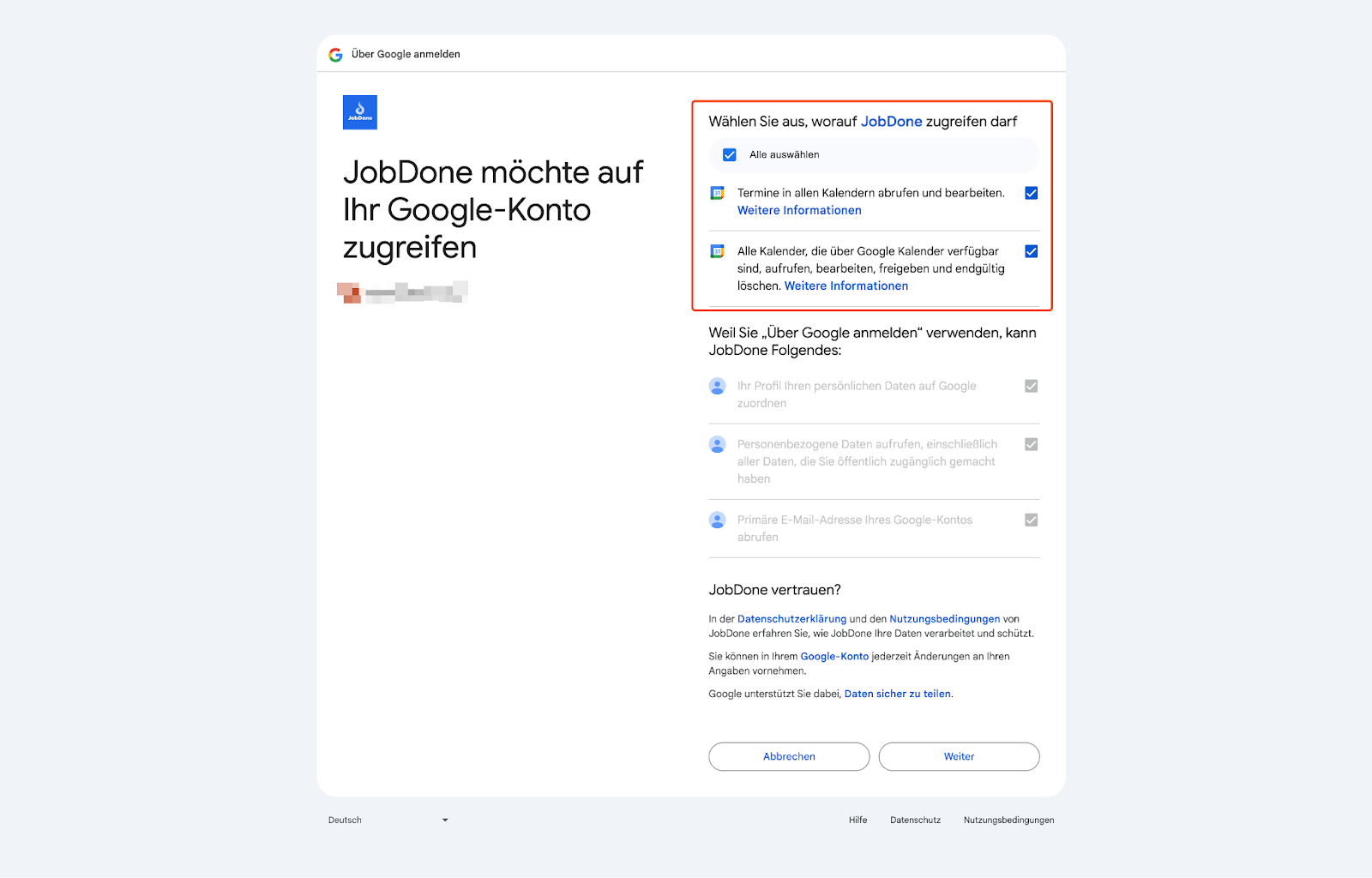
Step 7: Grant permissions
Select the required permissions to enable synchronization.
Step 8: Confirm the connection
The connection has been successfully established.
Step 9: Enable shift sync
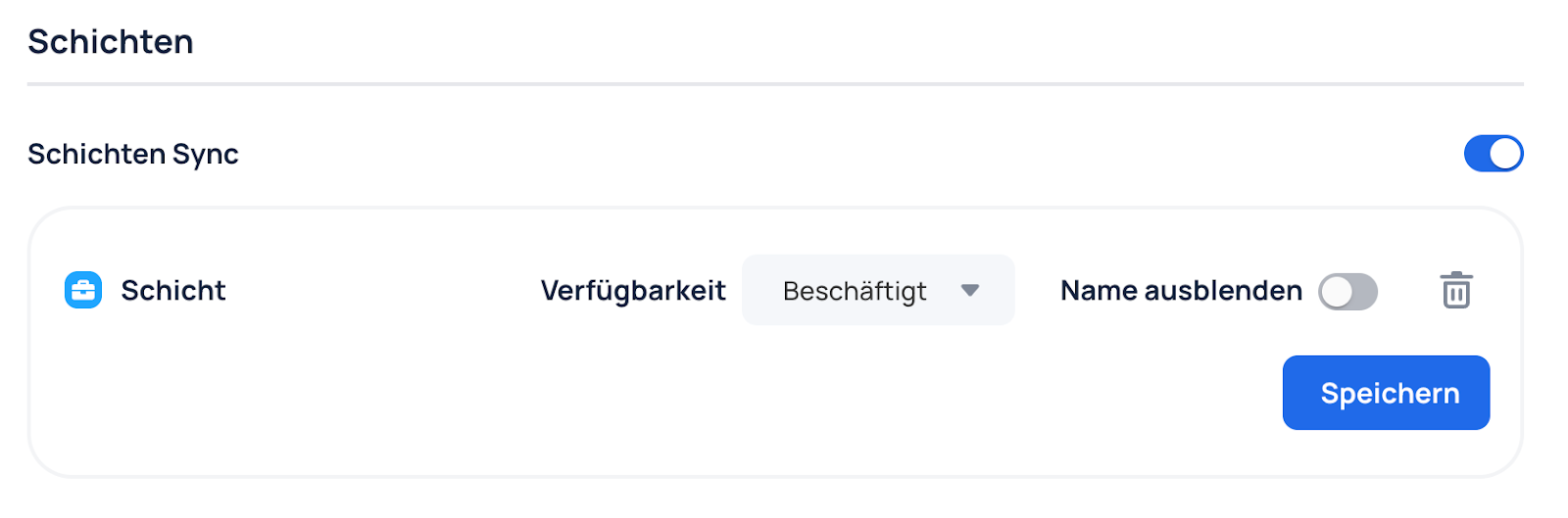
Enable synchronization of your shifts.
Optional: If you want to hide the shift name, enable the "Hide name" option and click Save.
Step 10: Enable absence sync
Enable synchronization of your absences.
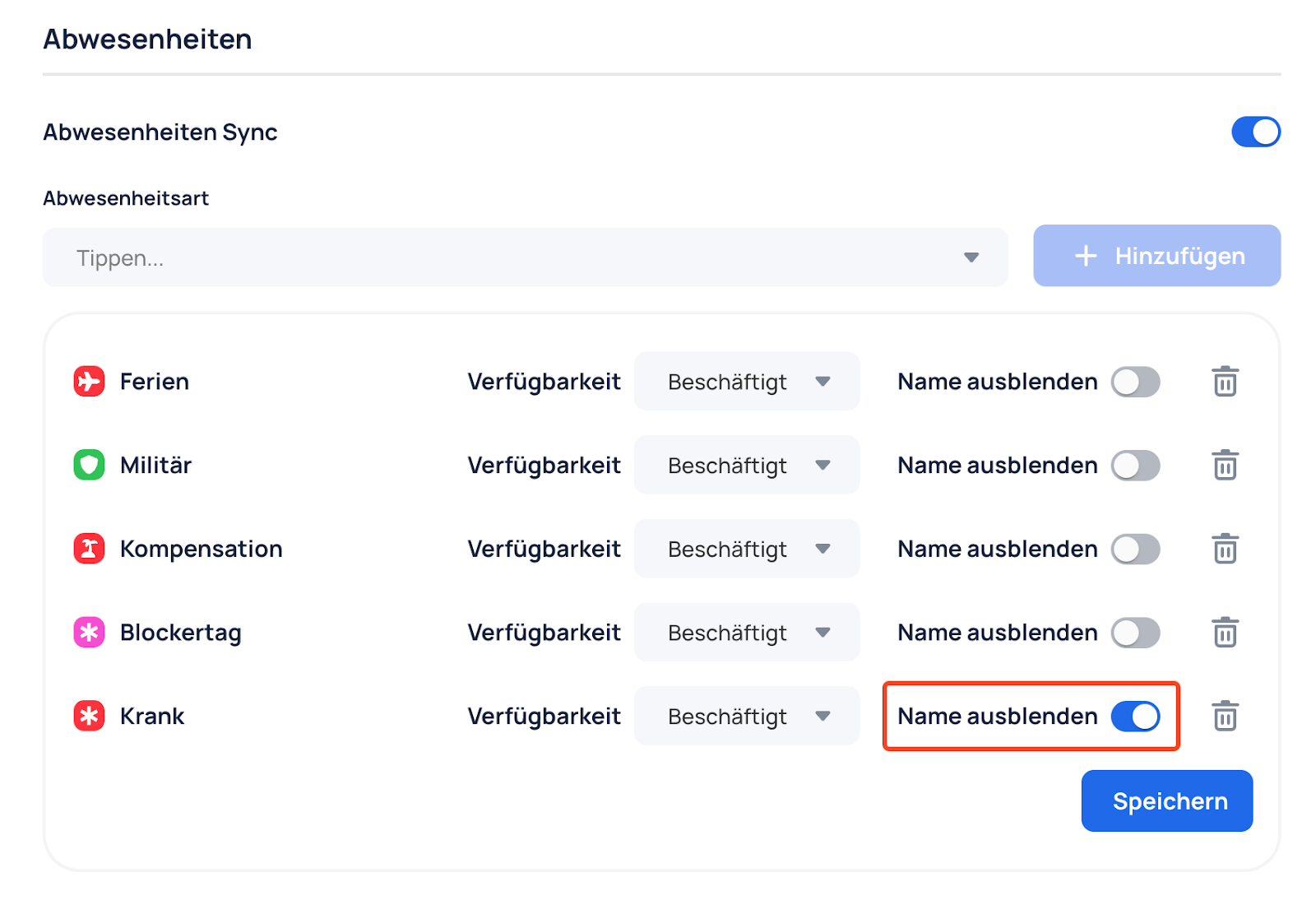
Note: By default, no absences are synced. Select the absence types you want to include.
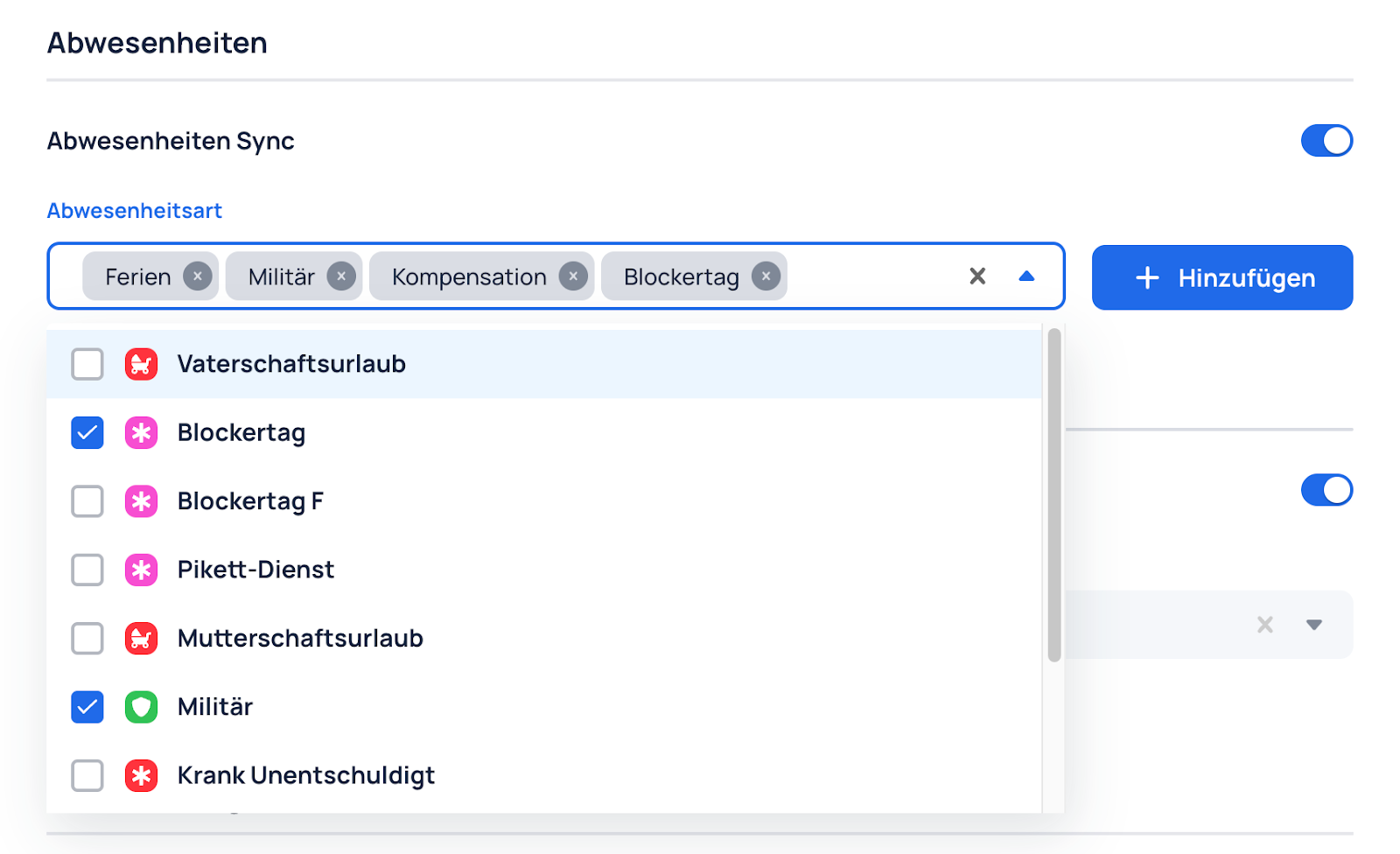
For each absence type, you can configure:
- Availability: Free or Busy
- Hide name: Enable this option if needed